How to install a free SSL certificate on WordPress
Step-by-step guide: enable a free Let's Encrypt SSL certificate on WordPress, switch your site to HTTPS and know what to do once it is live.
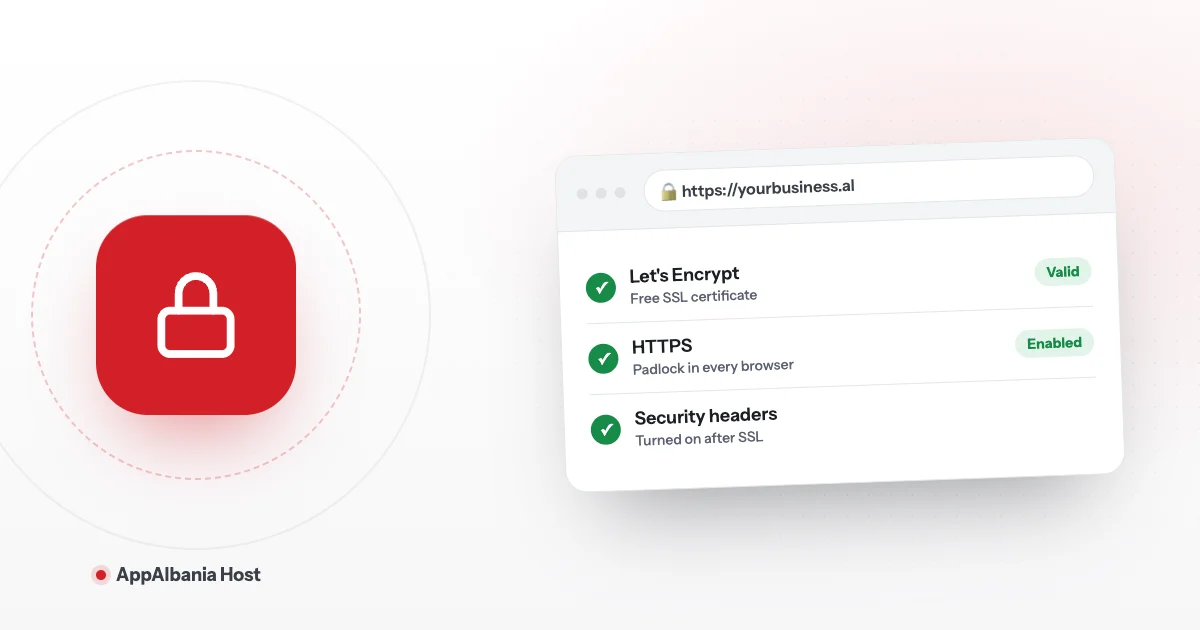
To add a free SSL certificate to your WordPress site on AppAlbania Host, open the hosting panel, go to SSL and choose Let's Encrypt. The only requirement is that your domain already points to the site. Shortly after, Overview will show HTTPS: Enabled and the padlock will appear in the browser.
What SSL is and why you need it
SSL is the small padlock you see next to a website address in your browser. It means the connection between the visitor and your site is encrypted, in other words protected. When a site has SSL, its address starts with https:// instead of http://. The "s" stands for "secure".
Why does this matter for a small business?
- Customer trust. Browsers warn visitors when a site is not secure. Many people leave right away.
- Data is protected. Passwords, contact forms and shop orders travel encrypted.
- Google. Google uses HTTPS as one of its ranking signals. A site without SSL looks outdated.
The good news: with AppAlbania Host you do not need to buy a certificate. Free SSL certificates are part of the plan.
Before you start: your domain must point to the site
Let's Encrypt checks that the domain really belongs to you. For that, the domain's DNS (the set of instructions that tells the internet where your site lives) must already point to your site on AppAlbania Host. If you have not done this step yet, follow our guide on how to connect your domain to your hosting.
DNS changes can take from a few minutes up to 24–48 hours. If you have just changed them, wait a little before requesting the certificate. Otherwise Let's Encrypt cannot verify the domain.
How do you know whether your site has SSL? Open the panel and look at the Overview page. It shows HTTPS as either Enabled or Disabled. In Settings you will also see the warning "The primary domain is not secured with SSL" until you add a certificate.
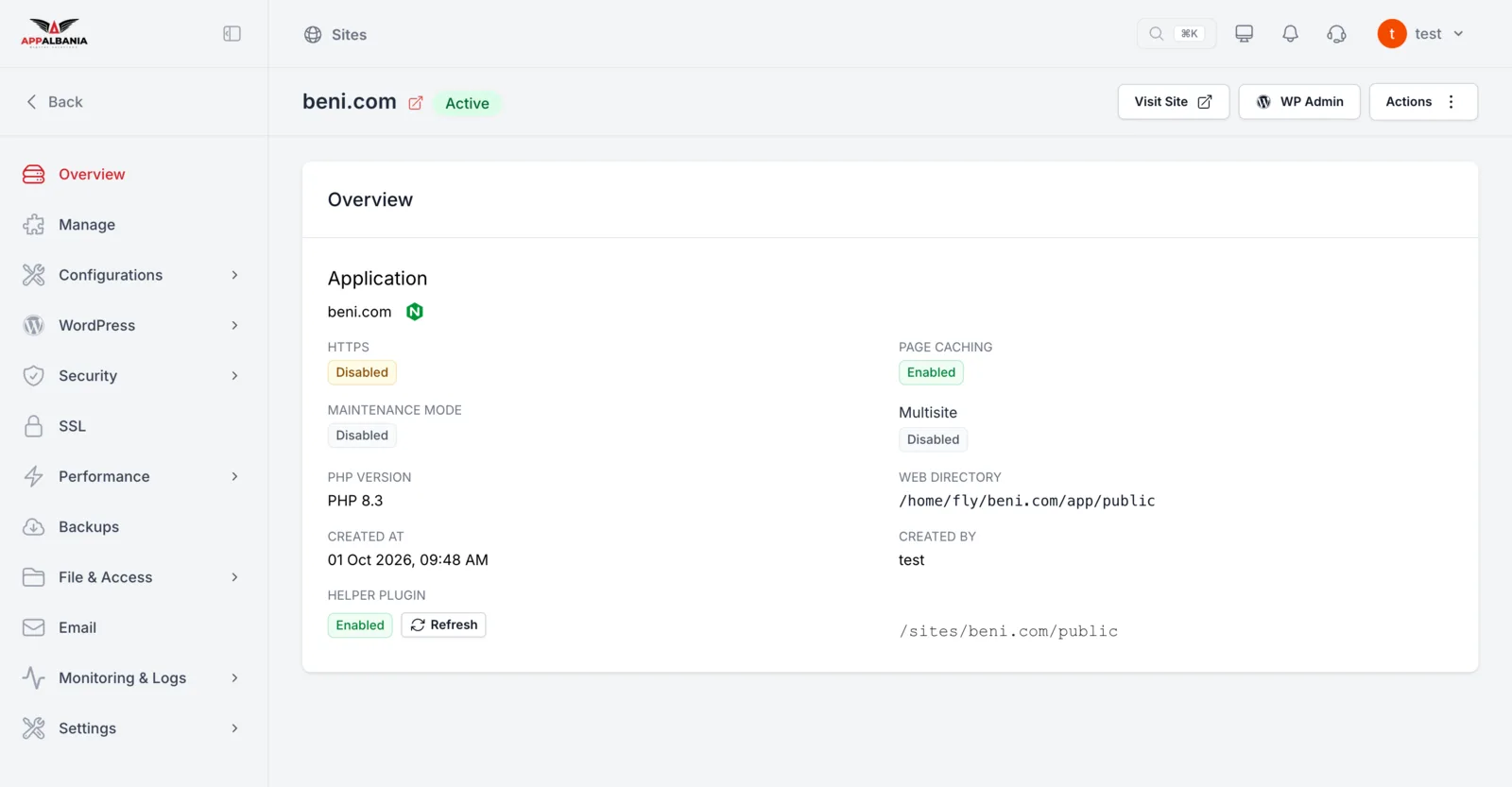
How to enable free SSL with Let's Encrypt
This is the simplest route and the one we recommend for most sites.
- Log in to your account at host.appalbania.com/account and click Open hosting panel. You are signed in with one click, no second password.
- Pick your site from the sites list.
- In the sidebar, click SSL.
- Under New Certificate, choose Let's Encrypt (free) and follow the on-screen prompts to confirm.
- Once the certificate is ready, it appears in the Current Certificates list.
- Go back to Overview and check that HTTPS says Enabled.
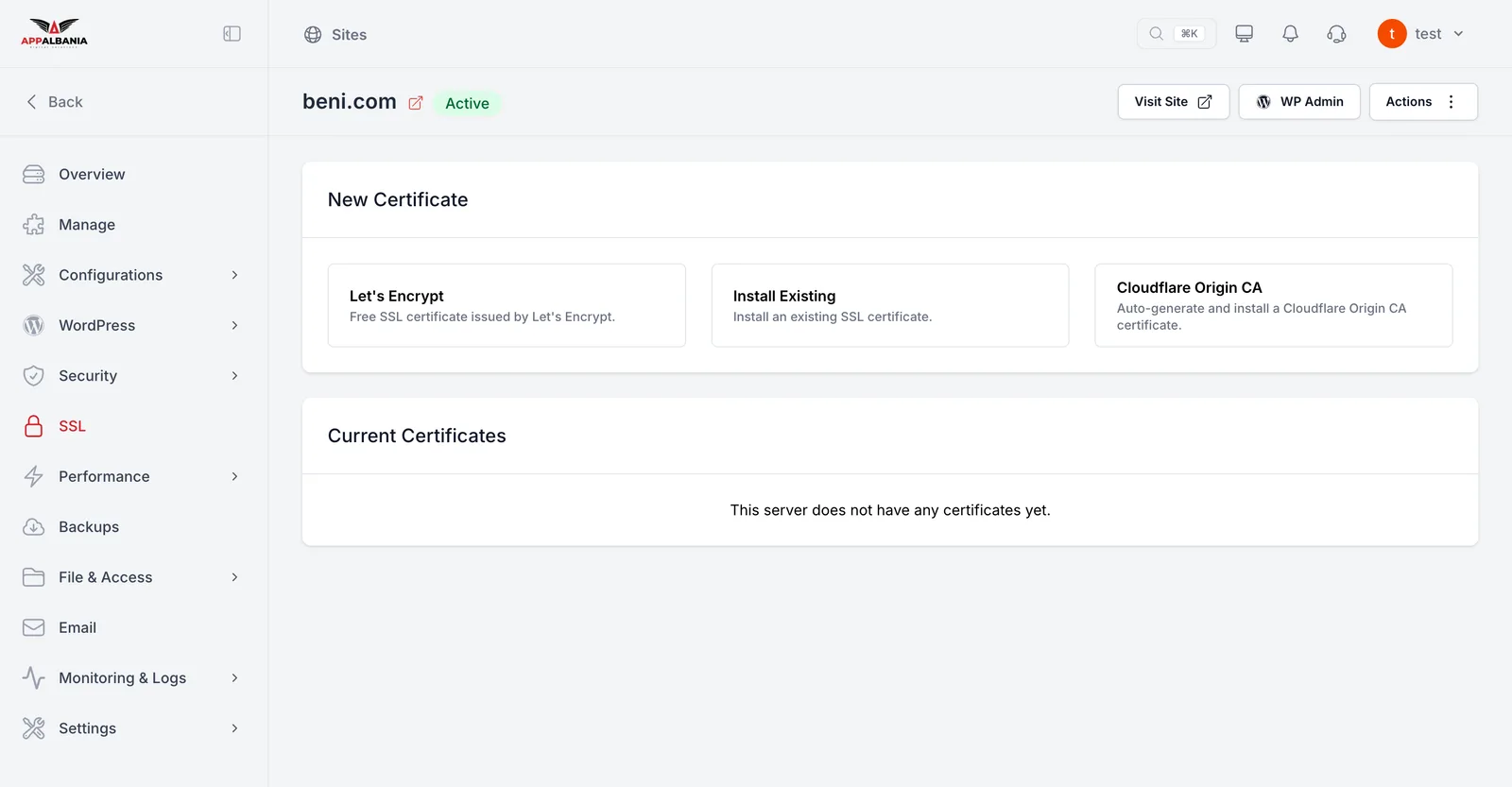
Once SSL is active, open your site in a private browser window with https:// in front of the domain. If you see the padlock, everything is working.
Other options: your own certificate or Cloudflare Origin CA
The panel also offers two other routes for special cases.
Install Existing — a certificate you already have
If your company has bought an SSL certificate from another provider, choose Install Existing and enter its details. This is useful when you need a specific certificate, for example for contractual reasons. For most businesses, Let's Encrypt is completely enough.
Cloudflare Origin CA — if you use Cloudflare
Cloudflare is a service that sits between the visitor and your site (a proxy). If your domain goes through the Cloudflare proxy, choose Cloudflare Origin CA, which generates the certificate automatically.
In that case, also turn on one helpful option: under Configurations → Nginx, in Config Manager, enable "My site is behind Cloudflare proxy". This way the server logs record your visitors' real addresses instead of Cloudflare's. Nginx is the web server that delivers your site.
After SSL: steps worth taking
1. Check your WordPress addresses
Click WP Admin in the panel's top bar to log in to WordPress with one click. In WordPress, under Settings → General, make sure the site address starts with https://. If some images or files still load over http://, the browser may hide the padlock. This problem is called "mixed content".
2. Turn on Security Headers
Under Security → General, find the Add Security Headers option. These are extra instructions the server sends to the browser to strengthen protection. The panel says it clearly: turn it on only once SSL is enabled.
Do not turn on Add Security Headers before you have an SSL certificate. Secure HTTPS first, then tighten security.
3. Carry on with full security
SSL is only the first step. The firewall, bad bot protection and vulnerability scanner are all in the panel too. Read our guide to WordPress security.
Common problems
- Let's Encrypt does not work. Usually the DNS does not point to the site yet. Check the A records at your domain registrar and wait for the changes to spread.
- HTTPS is Enabled but there is no padlock. Most likely you have mixed content. Check your WordPress addresses and clear the cache under Performance → Caching with Clear Cache.
- You use Cloudflare and the site does not load properly. Make sure you chose Cloudflare Origin CA and enabled the Cloudflare option under Nginx.
If you get stuck, our team is here to help. Write to us on the support page.
Summary
SSL turns your site into HTTPS, protects your visitors and builds trust. On AppAlbania Host, a Let's Encrypt certificate is free and is enabled from the panel under SSL, once your domain points to the site. After that, check your WordPress addresses and turn on Add Security Headers.
No hosting yet? Have a look at our WordPress hosting plans. Is your site hosted somewhere else? Request a free site migration and we will move it over for you.
Frequently asked questions
Is the SSL certificate really free?
Yes. Free Let's Encrypt SSL certificates are included with AppAlbania Host WordPress hosting. You do not need to buy a certificate separately.
Why will Let's Encrypt not issue my certificate?
Let's Encrypt needs your domain's DNS to already point to your site. If you have just changed your DNS records, wait up to 24–48 hours and try again.
How do I know if my site has HTTPS?
In the hosting panel, the Overview page shows HTTPS: Enabled or Disabled. In the browser, a site with SSL shows a padlock next to the address, which starts with https://.
I use Cloudflare. Which certificate should I choose?
If your domain goes through the Cloudflare proxy, choose Cloudflare Origin CA on the SSL page and enable "My site is behind Cloudflare proxy" under Configurations → Nginx.