How to speed up WordPress with cache, Redis and PHP
Speed up your WordPress site from the panel: FastCGI page cache, Redis object cache, OPcache, PHP version and Core Web Vitals, step by step, no code.
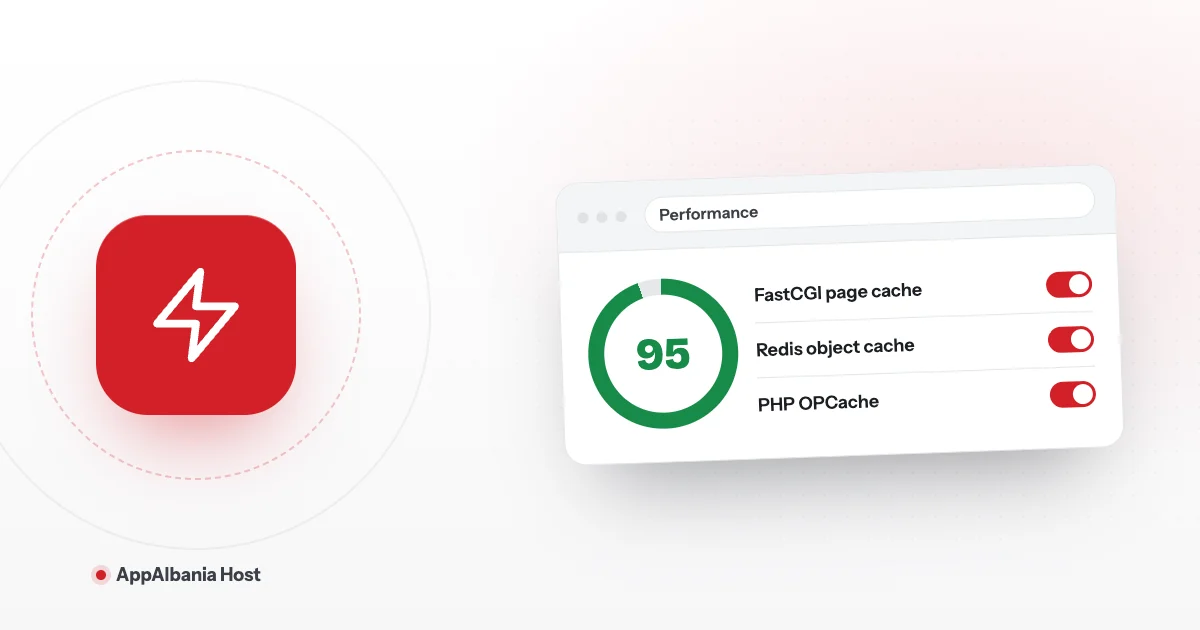
To make your WordPress site faster, turn on FastCGI Cache under Performance → Caching, enable Object Cache (Redis) and OPcache, and choose a recent PHP version. You can do all of this from the hosting panel in a few clicks, without installing a caching plugin. Then measure the result with the Performance Monitor.
Why does website speed matter?
A slow website loses visitors. People do not wait: if a page does not open quickly, they go back to Google and pick a competitor. Google also takes speed into account when ranking pages, especially on mobile.
The good news: most speed work happens on the server, not inside WordPress. On AppAlbania Host these tools are ready in the panel. If you have not opened the panel yet, start with our guide to getting started with WordPress hosting.
What is caching and how does FastCGI Cache work?
A cache is a "ready-made copy". Without a cache, every time someone opens a page, WordPress has to build it from scratch: read the database, run PHP and then send the result. With a cache, the server keeps the finished page and hands it to the next visitors instantly.
FastCGI Cache is a page cache that runs directly in Nginx (the web server program that delivers your pages to visitors). Because it works before WordPress even starts, it is very fast.
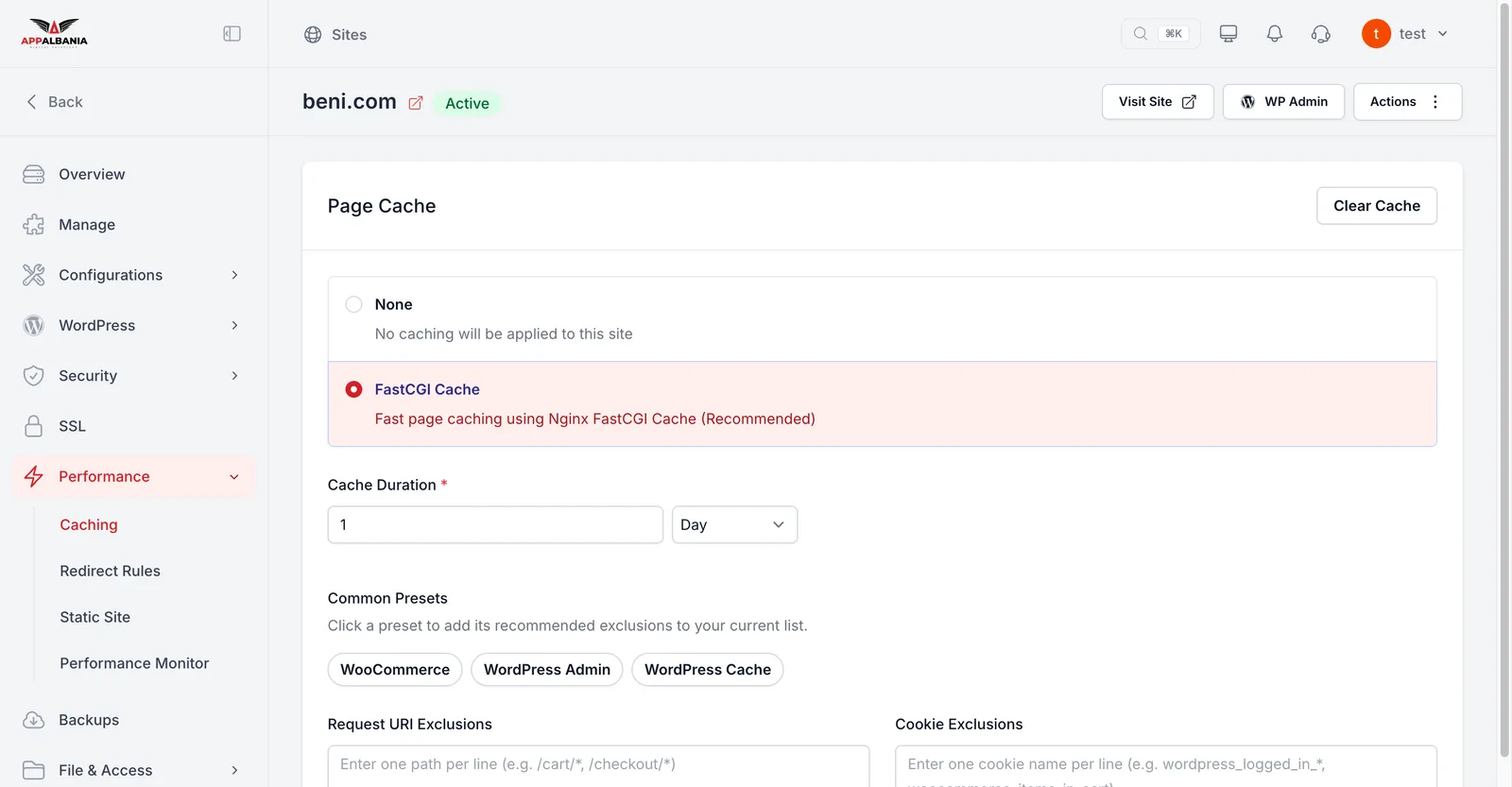
How to turn on FastCGI Cache
- Open the hosting panel from your account (Account → Open hosting panel) and select your site.
- In the sidebar, go to Performance → Caching.
- Under Page Cache, choose FastCGI Cache (marked "Recommended") instead of None.
- Under Cache Duration (how long the copy is kept), pick a time in seconds, minutes, hours or days. For pages that rarely change, a longer duration is fine.
- Save your changes. On the Overview page you will see that Page caching is active.
Exclusions: WooCommerce and pages that must not be cached
Some pages should never be cached because they are different for each person: the cart, checkout, customer account or the admin area. If they were cached, a customer could see someone else's cart.
The panel offers Common presets for exclusions (ready-made exclusions):
- WooCommerce – excludes your shop's cart, checkout and account pages.
- WordPress Admin – excludes the WordPress admin area.
- WordPress Cache – the standard WordPress exclusions.
You can also add your own:
- Request URI Exclusions – addresses (URLs) that should not be cached, for example a page with a special form.
- Cookie Exclusions – if a visitor has a certain cookie (a small file the browser keeps), they are not served from cache. Examples:
wordpress_logged_in(a logged-in user) andwoocommerce_items_in_cart(products in the cart).
Running an online shop? Always enable the WooCommerce preset together with FastCGI Cache. Product pages load fast, while the cart and checkout always stay accurate.
When you change your design or content and do not see the change, press Clear Cache on the same page.
Redis Object Cache: a lighter load on the database
Redis is a very fast memory store that keeps data in RAM. Object Cache means WordPress stores the results of database queries there, instead of asking the database the same thing hundreds of times.
This helps most where the page cache cannot: the admin area, logged-in users and WooCommerce shops. Under Performance → Caching, switch Object Cache on. If something looks outdated after a change, use the Clear Cache button below it.
The Redis connection details (host, username, prefix, password) are under Manage → Credentials, with copy buttons, in case a plugin or your developer asks for them.
PHP: version, OPcache and limits
PHP is the programming language WordPress is written in. Its version and settings directly affect speed. You will find them under Configurations → PHP.
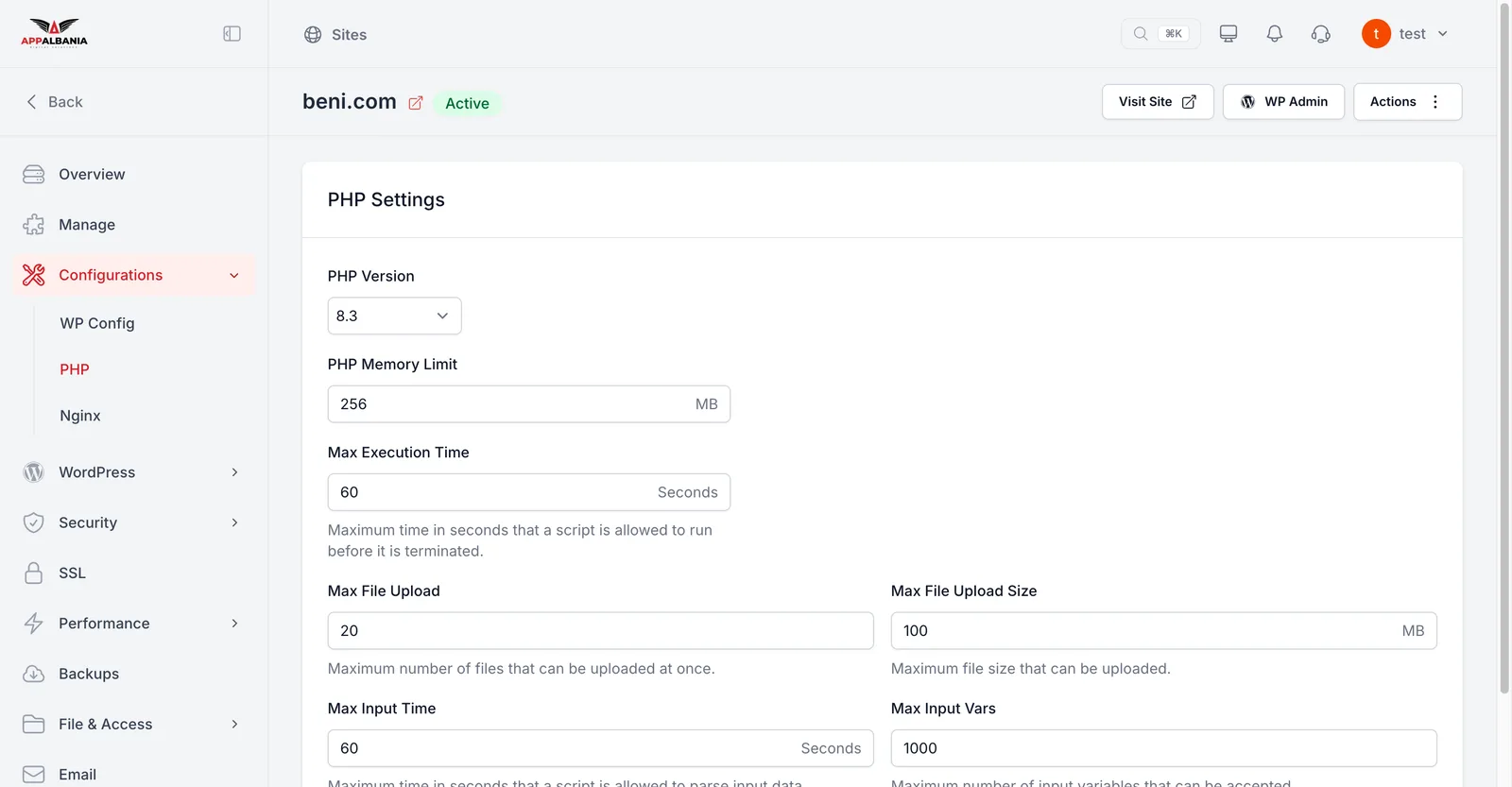
PHP version
Under PHP Version you can choose 8.2, 8.3 or 8.4. Newer versions are usually faster and more secure. Before switching to a newer version, make sure your theme and plugins are up to date, and take a WordPress backup.
OPcache
Enable PHP OPCache keeps your PHP code "pre-translated" in memory, so the server does not have to read and compile it from scratch on every request. Keep it switched on.
PHP limits in plain words
- PHP Memory Limit (MB) – how much memory a page may use. Raise it if you see "memory exhausted" errors with heavy page builders or WooCommerce.
- Max File Upload Size (MB) – the largest single file you can upload (photo, video, theme).
- Max File Upload – how many files you can upload at once.
- Max Execution Time and Max Input Time – how long a request may run before it is stopped. Useful for large imports.
- Max Input Vars – how many fields a form can send. Raise it if large menus do not save completely.
Do not raise limits "just in case". Change only what you need. If you are unsure, leave the Process Manager settings as they are and write to our support team.
Measure speed with the Performance Monitor (Core Web Vitals)
After making changes, you want to know whether the site actually got faster. Under Performance → Performance Monitor, the panel tests your site with Google PageSpeed Insights and shows the Core Web Vitals, the measurements Google uses for visitor experience:
| Metric | What it measures (simply) |
|---|---|
| TTFB | How fast the server sends the first byte. Caching lowers it a lot. |
| LCP | How fast the main element appears, e.g. a large image or the headline. |
| INP | How quickly the page reacts when a visitor clicks or types. |
| CLS | How much the page "jumps" while loading. Less is better. |
- Press Scan Now for an instant measurement.
- Turn on Enable Daily Automated PageSpeed Scan so the panel tests your site every day.
- Check the charts for the last 7, 14 or 30 days, separately for mobile and desktop.
This way you clearly see the effect of every change, for example after turning on caching or installing a new plugin.
Summary
For a fast WordPress site: turn on FastCGI Cache with the WooCommerce preset if you run a shop, enable Redis Object Cache and OPcache, use PHP 8.2, 8.3 or 8.4, and track results with the Performance Monitor. Do not forget a free SSL certificate (HTTPS) and WordPress security too.
Want WordPress hosting where these tools are ready from day one? See the AppAlbania Host plans, or request a free site migration. Need help? Contact our support team.
Frequently asked questions
Do I need a caching plugin in WordPress?
Not necessarily. FastCGI Cache and Redis Object Cache are switched on directly in the panel under Performance → Caching, without installing a caching plugin.
Does caching work with WooCommerce?
Yes. Enable the WooCommerce exclusion preset so the cart, checkout and customer account are never cached and always stay accurate.
Why can I not see the change I made on my site?
You are probably seeing the cached copy. Press Clear Cache under Performance → Caching and reload the page.
Which PHP version should I choose?
The panel offers PHP 8.2, 8.3 and 8.4. Newer versions are usually faster, but update your theme and plugins and take a backup before switching.