WordPress troubleshooting: a step-by-step checklist
White screen, 500 error, slow site, email not sending or can't log in? A calm WordPress troubleshooting checklist using your hosting panel tools.
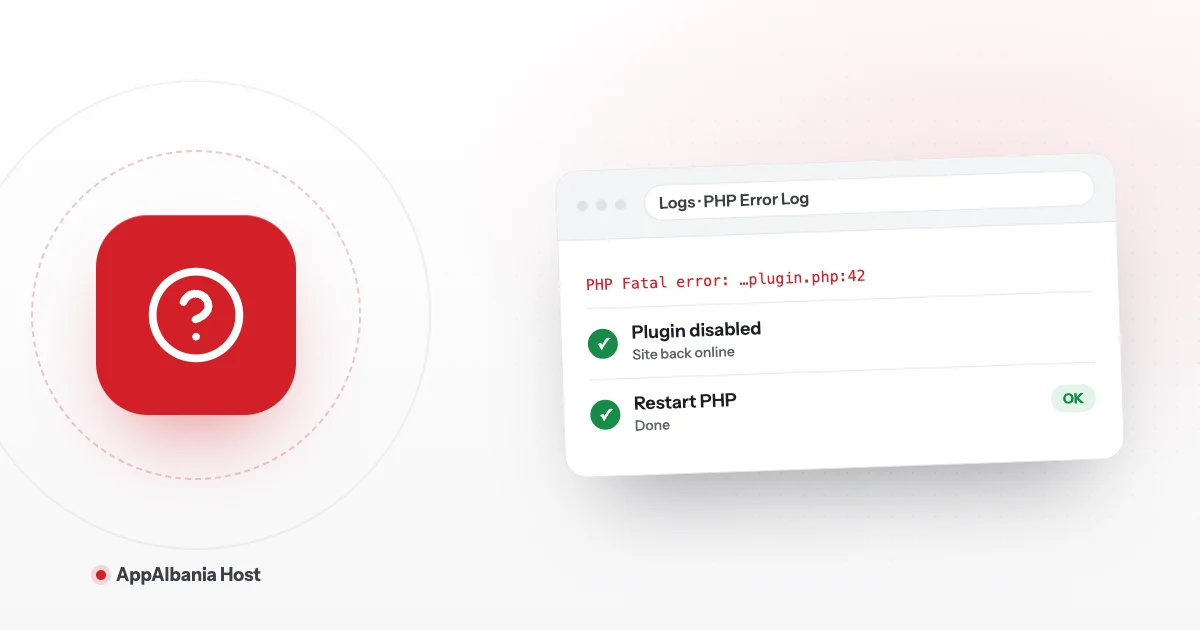
When your WordPress site has a problem, don't panic: you can fix most issues yourself from the AppAlbania Host panel. First read the error logs, then use the right tool: fix permissions, restart PHP or clear the cache. If the problem remains, open a support ticket with the details listed below.
Before you start: where the tools are
Open the panel from your account with Open hosting panel and pick your site. You'll use two places most:
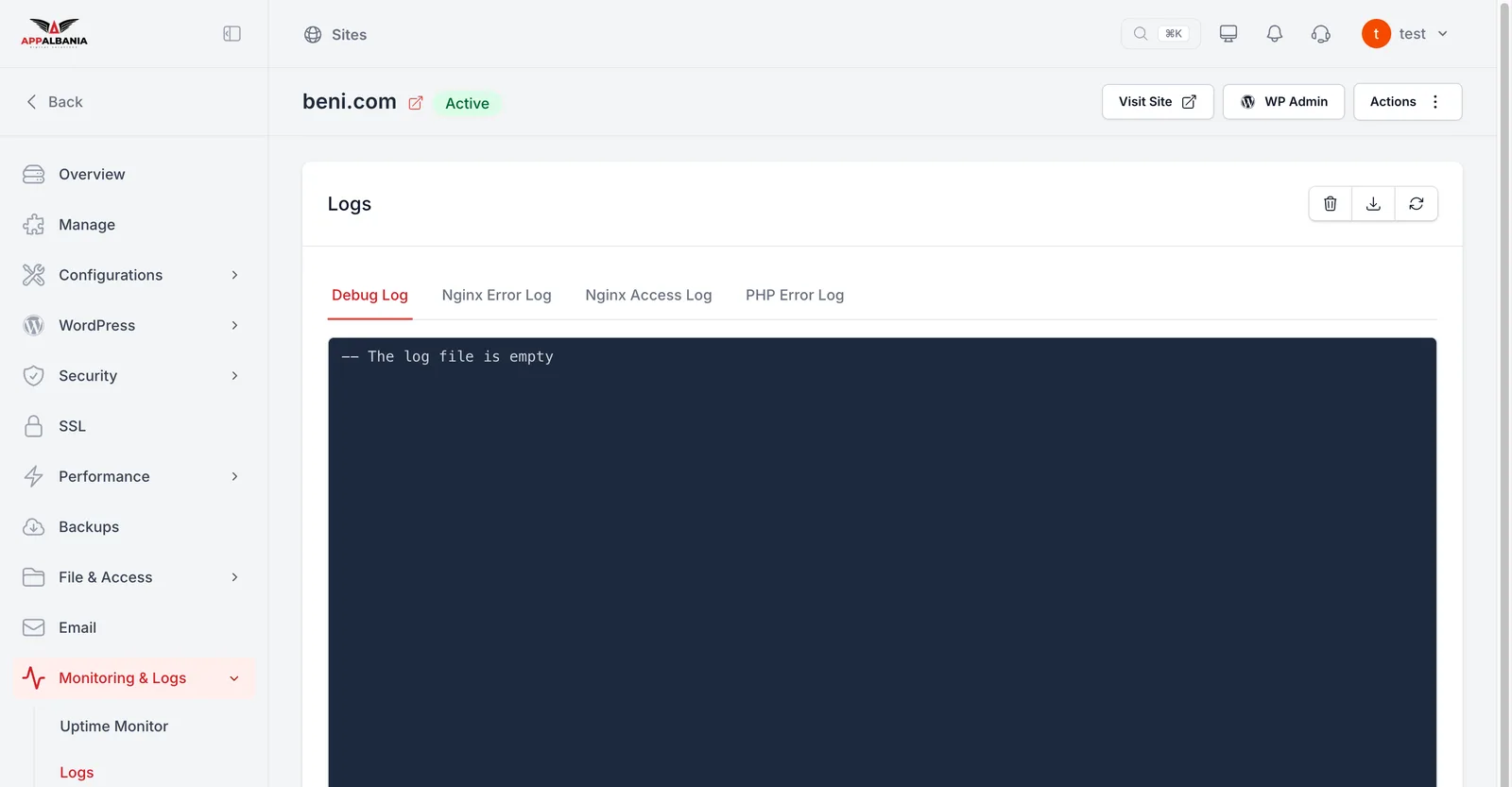
- Monitoring & Logs → Logs – the logs, a running list where the server records what happens and which errors occur. There are four tabs: Debug Log (WordPress errors), PHP Error Log (errors from PHP, the language WordPress is written in), Nginx Error Log and Nginx Access Log (Nginx is the web server that delivers pages to visitors).
- Manage – "Manage Services", with the buttons for fixing permissions and restarting services.
Think about what changed last: a new plugin, an update, a theme change. The cause is often right there.
How to read the logs
Logs look technical, but you only need three things: the time, the keywords and the file name.
- The time – look for lines that match the moment you saw the problem.
- The keywords – "Fatal error" means an error that stops the page; "Warning" and "Notice" are usually milder alerts.
- The file name – a path like
wp-content/plugins/plugin-name/tells you which plugin is to blame.
The Nginx Access Log lists every request that reaches the site. It is useful when you want to see whether someone is flooding the site with requests.
1. White screen (blank page)
A white screen usually comes from a PHP error in a plugin or theme.
- Go to Configurations → WP Config, turn on Enable Debug Mode (WP_DEBUG) and Enable Debug Log, then click Save Changes.
- Reload your site once so the error gets recorded.
- Open Monitoring & Logs → Logs → Debug Log. The last lines usually name the plugin or theme causing the problem.
- If you can't get into WordPress to deactivate it, open File & Access → File Manager and rename that plugin's folder in
wp-content/plugins(for example add-offto the end). WordPress deactivates a plugin when it can't find its folder. - Once the site is back, switch the debug options off again.
Learn more about WP Config in managing WordPress from the panel.
2. 500 error (Internal Server Error)
"500" means the server hit an error and couldn't return the page.
- Check the PHP Error Log and Nginx Error Log under Logs. Note the time and the error message.
- If the error mentions permissions ("permission denied"), go to Manage and click Fix Permission under File Permission. This repairs file permissions, meaning who may read and write the files.
- Then try Restart PHP. If the problem remains, try Restart Nginx.
- If the error names a plugin, follow the white screen steps above.
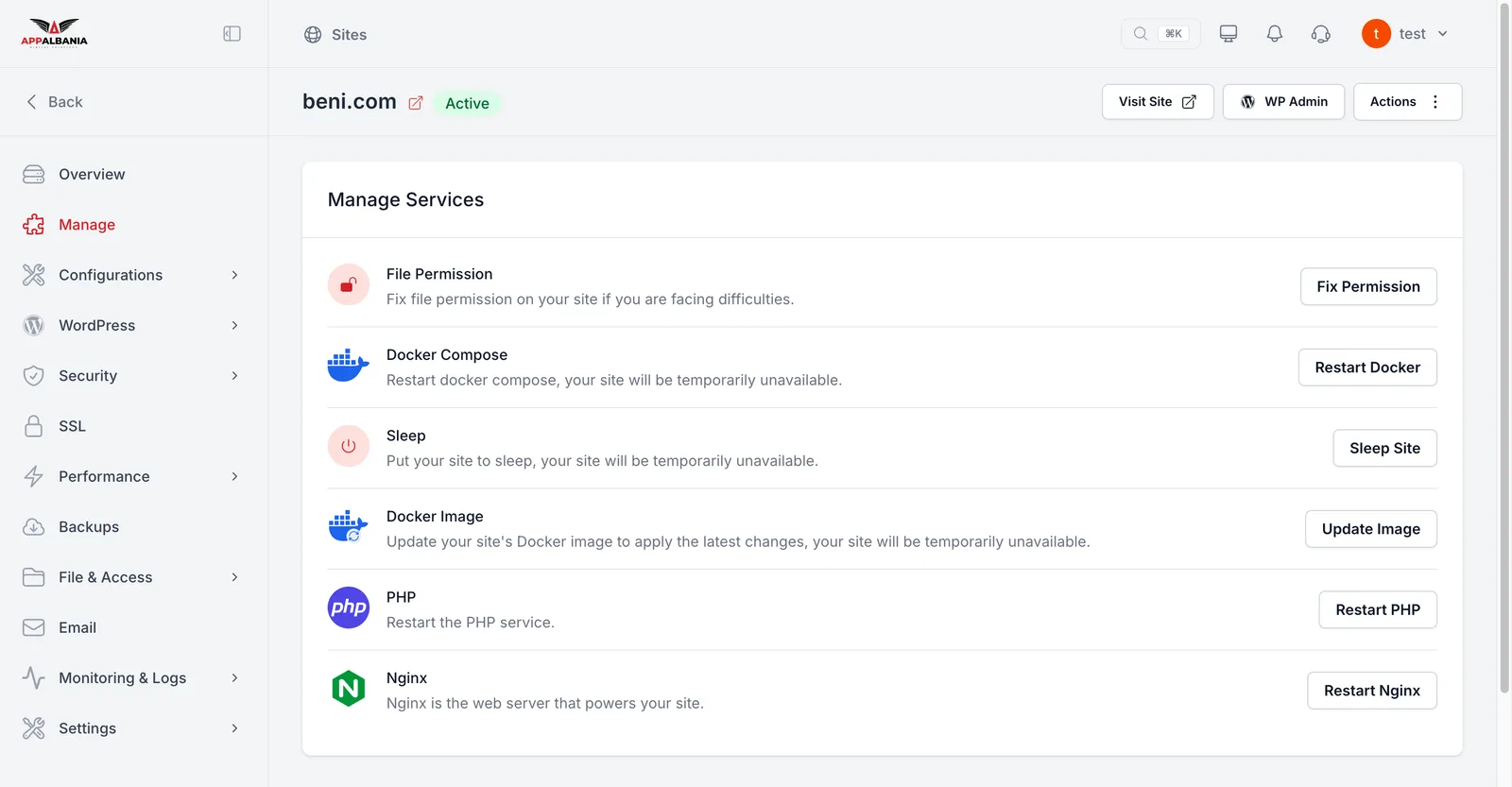
Restart Docker makes the site temporarily unavailable. Try Restart PHP or Restart Nginx first, and leave Sleep Site alone, because it puts the site to sleep.
3. The site is slow
- Go to Performance → Performance Monitor and click Scan Now. You'll see Core Web Vitals (Google's speed scores): TTFB, LCP, INP and CLS.
- Under Performance → Caching, make sure Page Cache is set to FastCGI Cache (a cache is a ready-made copy of the page that loads fast). Turn on Object Cache (Redis) too.
- If your changes don't show up, click Clear Cache.
- Under Configurations → PHP, check the PHP version and the PHP Memory Limit.
The full guide is in speeding up WordPress with caching.
4. Emails are not sending
If contact forms, WooCommerce orders or password resets don't send email:
- Go to Email ("Email Sending").
- Pick your provider (Postmark, Sendgrid, Mailgun or Custom) and check the From Email, SMTP Username and SMTP Password.
- Click Verify Connection and Save Changes to test the connection.
See the full steps in sending WordPress email with SMTP.
5. You can't log in to WordPress
- Use the WP Admin button in the site's top bar: it takes you straight into the WordPress dashboard, no password needed.
- If you need a fresh account, go to WordPress → Users and click Create User.
- Check Security → General to see whether Disable Login (wp-login.php), Disable WP Admin or HTTP Basic Authentication is switched on. These can block the normal login.
Read more in WordPress security.
If the problem started after a change
If the site broke right after an update or a new plugin and the steps above aren't enough, a backup can bring the site back to how it was. Backups are stored off-server and managed on the Backups page. See how backups work. If the page shows "No backup providers found", first connect a storage provider (Amazon S3, Cloudflare R2, Wasabi and others) with Add Backup Provider.
When to contact support
If the problem continues after these steps, open a ticket at support, or in the Support tab of your account. Include:
- your site's domain;
- what you see (white screen, 500, slowness, email, login) and since when;
- what you changed recently;
- the error message from Logs, with the time it happened;
- the steps you have already tried.
You can also reach us on WhatsApp at +355 67 496 3486 or at info@appalbania.com.
Summary
Read the logs, turn on the Debug Log, fix permissions, restart PHP or Nginx and clear the cache. These steps solve most problems. For everything else, our team is at support. Want hosting that comes with all these tools? See our WordPress hosting plans.
Frequently asked questions
Why does my WordPress site show a white screen?
Usually because of a PHP error in a plugin or theme. Turn on the Debug Log in WP Config and read the Debug Log under Logs to find the cause.
How do I fix a 500 error in WordPress?
Check the PHP Error Log and Nginx Error Log, then try Fix Permission and Restart PHP under Manage. If it continues, open a support ticket.
Will restarting PHP take my site down?
Restart PHP only restarts the PHP service. Restart Docker, on the other hand, makes the site temporarily unavailable, so try PHP or Nginx first.
What should I include when I contact support?
Your domain, the problem and when it started, recent changes, the error message from Logs with the time, and the steps you already tried.