WordPress backups: how to save and restore your site
WordPress backups on AppAlbania Host: connect Amazon S3, Cloudflare R2, Wasabi or any S3 storage, keep copies off-server and restore your site anytime.
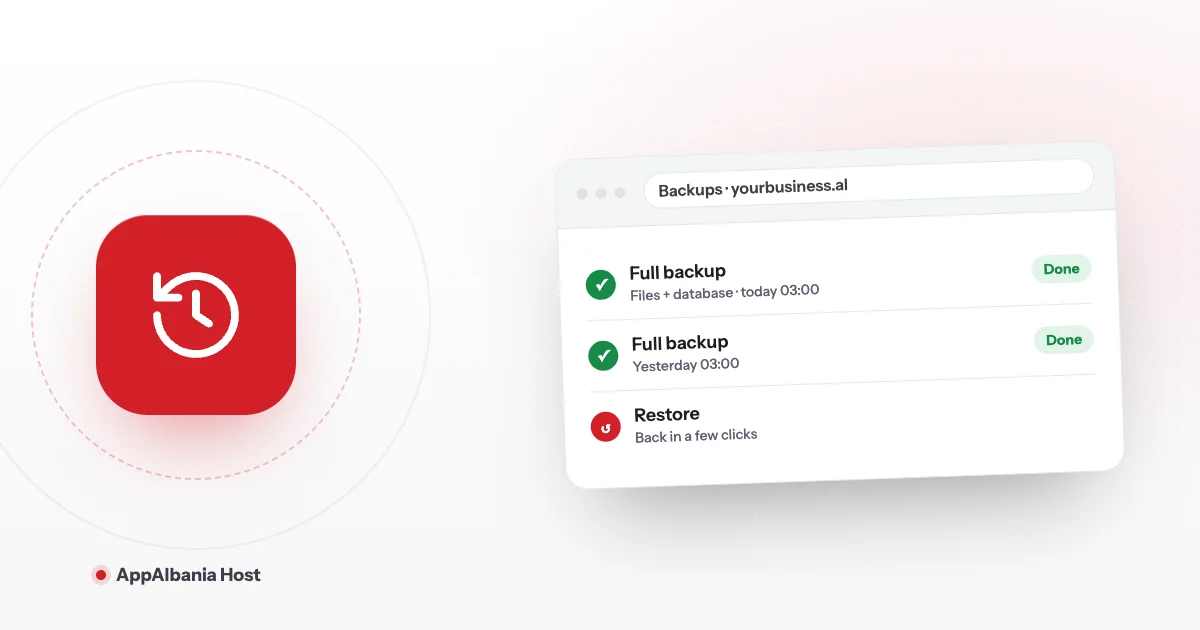
Backups for your WordPress site on AppAlbania Host are managed from the Backups page in the hosting panel. Copies are written to external storage you choose yourself — Amazon S3, DigitalOcean Spaces, Cloudflare R2, Wasabi, Google Cloud Storage or any S3-compatible service — so they live outside the server that runs your site. You connect it once under Backup storage and then pick it in the site's backup settings.
What a backup is and why you need one
A backup is a full spare copy of your site: the files (theme, plugins, images) and the database (where WordPress stores your posts, pages, orders and users). If something breaks, a backup lets you put the site back the way it was.
Mistakes happen even on the most careful sites:
- A plugin update clashes with your theme and the site shows an error.
- You accidentally delete a page, a product or a whole section.
- A change in code or settings breaks the design.
- An insecure plugin opens the door to an attack.
Without a backup, these can cost days of work. With a backup, they are usually fixed quickly. For an online shop or a business website, a backup is like car insurance: you hope you never need it, but you would not drive without it.
How backups work on AppAlbania Host
The panel does not keep backups on the same server as your site. They are written to a storage provider (backup provider) that you own. So even if the server has a problem, your copies stay safe somewhere else — and they always belong to you.
Providers you can connect:
- Amazon S3
- DigitalOcean Spaces
- Cloudflare R2
- Wasabi
- Google Cloud Storage
- Custom (S3 Compatible) — any other service that works like S3.
There are two parts: (1) add the provider once for your account, (2) choose it on each site's Backups page.
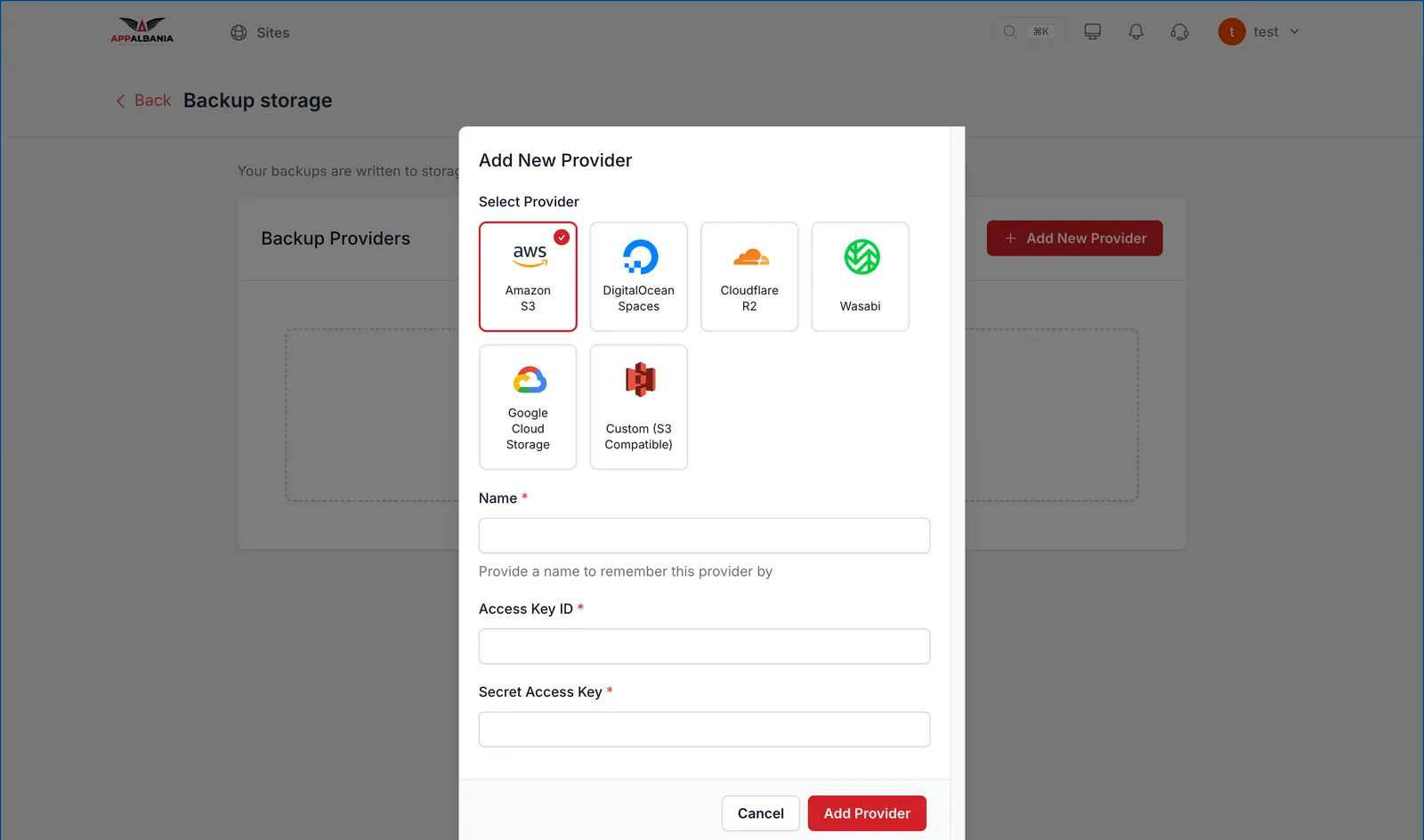
How to add a backup provider (step by step)
Before you start, create a bucket (a storage "folder") and an access key (Access Key ID and Secret Access Key) at the provider you choose. Every provider explains this in its own dashboard, usually under "API keys" or "Access keys".
- Log in to your account at host.appalbania.com/account and click Open hosting panel. You are signed in with one click, no second password.
- Open your site and click Backups in the sidebar. If you have no provider yet, you will see "No backup providers found" and an Add Backup Provider button — click it. The Backup storage page opens.
- Click Add New Provider.
- Under Select Provider, choose your provider (for example Cloudflare R2 or Wasabi).
- In Name, type a name you will recognise, such as "Business backups".
- Paste the Access Key ID and Secret Access Key from the provider, fill in any other fields the form asks for and click Add Provider.
- Go back to the site's Backups page and select the new provider in the backup settings. From now on your site's backups are stored there.
Only give your access keys to the panel. Never send them by email or chat. If you think someone has seen them, create new keys at the provider and update the provider in the panel.
Storage at the provider (S3, R2, Wasabi and so on) is paid directly to them at their prices. If you need help with the setup, write to us on the support page.
When to back up: good habits
The simplest rule: back up before any change that could break your site. Here are the key moments.
Before updates
The panel lets you update WordPress, plugins and themes with one click, even all at once. That is very convenient, but right before a big update is exactly the time for a backup. If something goes wrong, you can go back without stress. You can read more about updates in managing WordPress from the panel.
Before big changes
- When you change your theme or redesign the site.
- When you install an important new plugin, for example for payments or a shop.
- When you change the PHP version under Configurations → PHP (PHP is the language WordPress runs on).
- When you edit files by hand through File Manager or SFTP, even if the change seems small.
- When you change important settings in WP Config.
Keep a copy of your own
Off-server backups are your main protection. Even so, it is a good habit to keep a copy on your own computer from time to time. For files, you can download them over SFTP, for example the wp-content folder, which holds your themes, plugins and images. See our guide to File Manager and SFTP. If you also need a copy of the database and are not sure how to get one, write to us and we will help.
Store your own copy somewhere safe, not only on one laptop. An external drive or a cloud storage account are both good options.
How to restore your site from a backup
Restoring is done from the same Backups page in the panel. Before you do it, keep these points in mind:
- Choose the right copy. Pick the most recent backup from when the site was working well, before the problem.
- Know that a restore takes the site back in time. Anything changed after that backup, such as new posts or orders, may be lost. For online shops, note down your latest orders before you continue.
- Check the site after the restore. Open it with Visit Site, log in with WP Admin and make sure everything works.
- Clear the cache. Under Performance → Caching, click Clear Cache so visitors see the restored version.
Not sure which backup to choose, or the site will not load at all? Do not take risks. Contact our support team and we will guide you step by step. For other issues, also read our troubleshooting guide.
Mistakes to avoid
- Thinking "it won't happen to me". Problems arrive without warning. Your backup needs to be ready before they do.
- Never connecting a provider. Without a storage provider there are no backups. Open the Backups page today and add one, not when you already have a problem.
- Updating everything without a backup. Updates matter for security, but do them with a fresh copy in place.
Summary
A backup is your safety net. On AppAlbania Host, copies are kept off-server at a provider you choose yourself (Amazon S3, DigitalOcean Spaces, Cloudflare R2, Wasabi, Google Cloud Storage or any S3-compatible service) and managed from the Backups page in the panel. Connect the provider once, back up before updates and big changes, and keep a copy of your own from time to time.
Want WordPress hosting with off-server backups? See our plans. Is your site with another host? Request a free migration.
Frequently asked questions
Where are my site's backups stored?
At the storage provider you connect in the panel yourself (for example Amazon S3, Cloudflare R2 or Wasabi), outside the server that runs your site. That way the copy stays safe even if the server has a problem.
What does "No backup providers found" mean?
It means you have not connected a storage provider yet. Click Add Backup Provider, add Amazon S3, DigitalOcean Spaces, Cloudflare R2, Wasabi, Google Cloud Storage or an S3-compatible service, and select it in the backup settings.
When should I back up my WordPress site?
Before every update to WordPress, plugins or themes, and before big changes such as switching theme or PHP version. Also keep a copy on your own computer from time to time.
Will I lose data if I restore a backup?
A restore returns the site to the state of the backup, so changes made after it may be lost. Choose the right copy and contact support if you are not sure.