Managing WordPress from the panel: updates and more
How to manage WordPress from the hosting panel: one-click WP Admin login, bulk updates, users, WP Config, cron, redirects and maintenance mode.
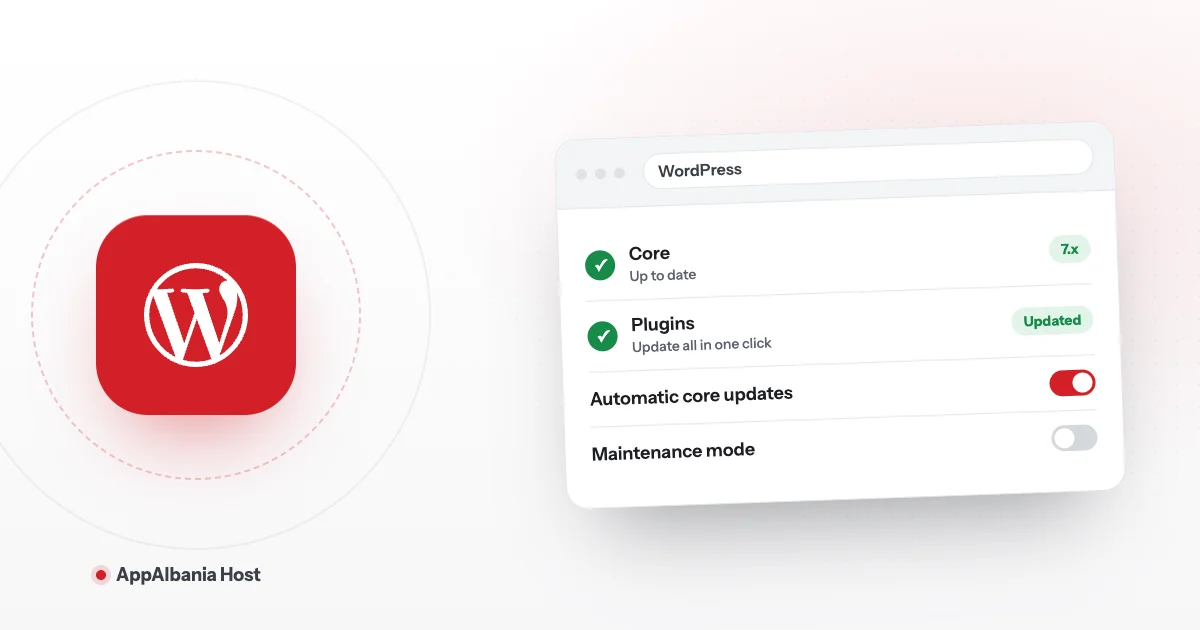
With AppAlbania Host you can manage WordPress straight from the hosting panel, without logging into your site's admin area every time. In a few clicks you open WP Admin, update plugins and themes (even all at once), create users, turn on the error log, set up redirects and put the site into maintenance mode.
This guide walks through each task step by step, using the exact button labels the panel shows.
One-click login to WordPress (WP Admin)
You don't need to remember your WordPress password to reach the dashboard (the admin area where you write posts and edit pages).
- Log in to your AppAlbania Host account and click Open hosting panel. You are signed in automatically, with no second password.
- Pick your site from the Sites list.
- In the top bar, click WP Admin. The WordPress dashboard opens, already logged in.
Next to it you also have Visit Site and Actions for other site tasks.
If you are brand new and haven't opened the panel yet, start with getting started with WordPress hosting.
Updates: core, plugins and themes
Updates fix bugs and close security holes. The core is WordPress itself, plugins are add-ons that give your site new features, and the theme is its design.
Bulk updates from the Sites list
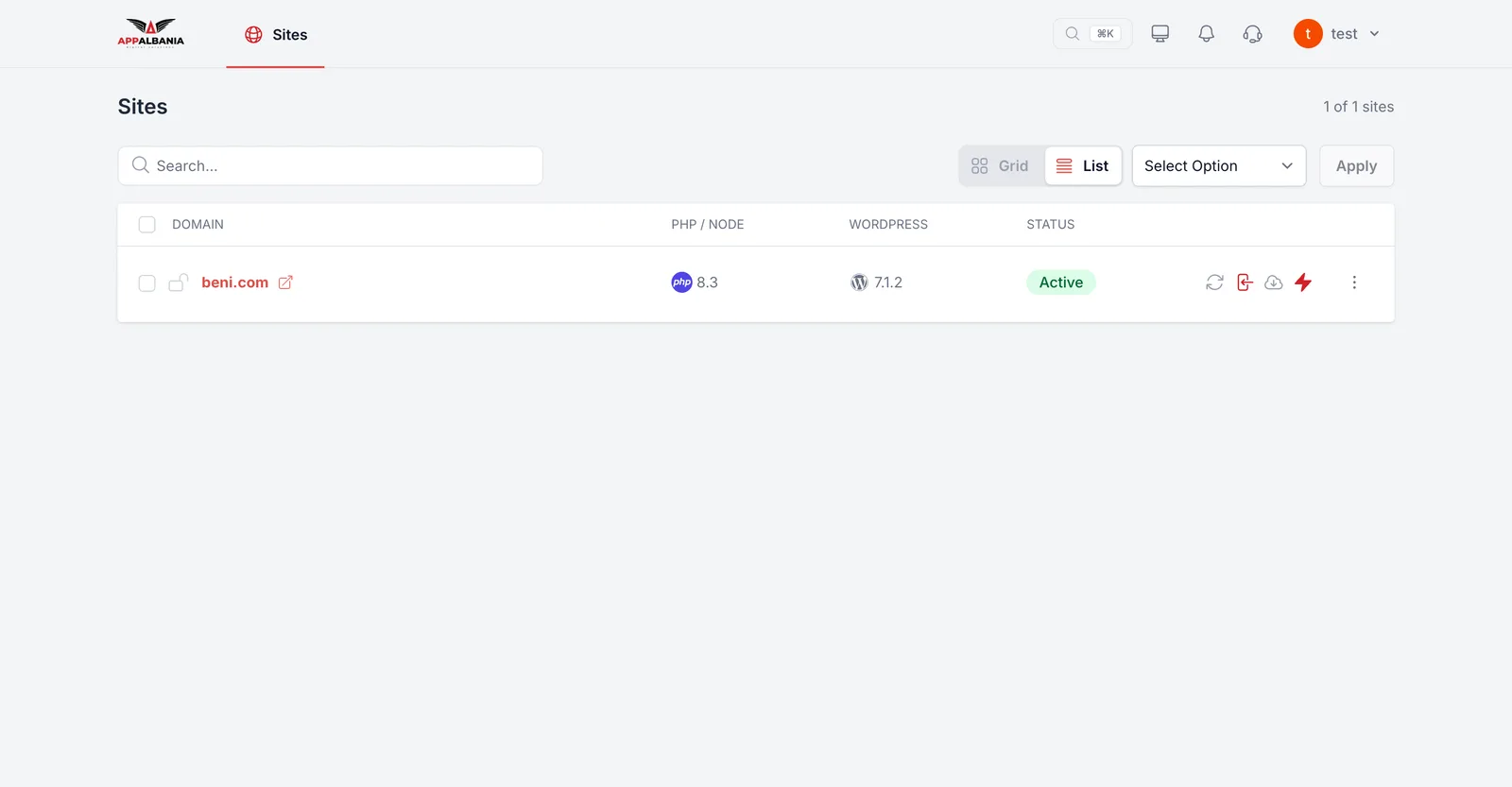
The Sites list shows each site's domain, PHP version, WordPress version and status. It also offers bulk actions:
- Update all plugins – updates every plugin.
- Update all themes – updates every theme.
- Update core – updates WordPress itself.
- Update everything – updates it all at once.
Updates inside a site
Inside a site, WordPress → Overview shows how many updates are pending and how many plugins, themes and users you have. The Update All button installs them all in one go.
Before a big update, make sure you have a recent backup. See our guide to WordPress backups.
A safe update routine
- Take a backup of the site.
- Update plugins and themes first, then the core.
- Click Visit Site and check the homepage, your contact form and, if you run a shop, the cart.
- If something looks wrong, check the error logs under Monitoring & Logs → Logs.
Plugins, themes and users
Under WordPress → Plugins you have Add New, Refresh and Update all plugins. The filters All / Active / Inactive / Update Available show every plugin, the active ones, the inactive ones and the ones waiting for an update.
Under WordPress → Themes you update every theme with Update all themes.
Under WordPress → Users you add someone new with Create User. You can filter users by role:
- Administrator – full control of the site.
- Editor – manages all posts and pages.
- Author – writes and publishes their own posts.
- Contributor – writes, but cannot publish.
- Subscriber – can only read and manage their profile.
Give each person only the role they need. A collaborator who writes articles needs Author, not Administrator.
WP Config: debug mode and automatic updates
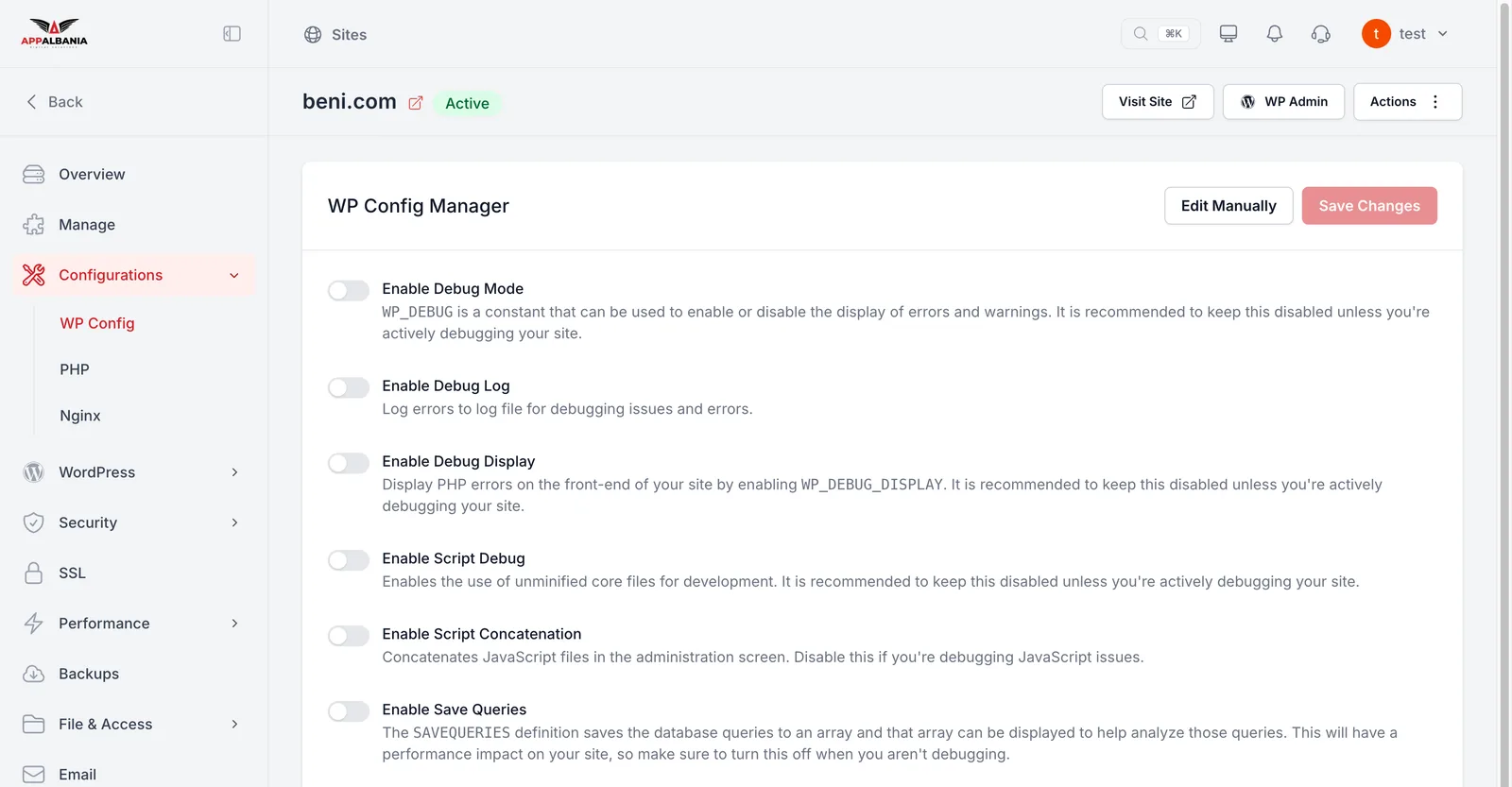
The wp-config.php file holds WordPress's main settings. Under Configurations → WP Config you change them with simple switches, without touching code.
Debug mode
"Debug" means hunting for errors. The main switches are:
- Enable Debug Mode (WP_DEBUG) – turns on error reporting.
- Enable Debug Log – saves errors to a log file, which you read under Monitoring & Logs → Logs.
- Enable Debug Display – prints errors directly on the page.
There are also developer options: Enable Script Debug, Enable Script Concatenation and Enable Save Queries. After any change, click Save Changes. If you need to, Edit Manually lets you edit the file by hand.
Don't leave Enable Debug Display on for a public site: visitors will see the error messages. Use the Debug Log instead and switch everything off when you're done.
Automatic core updates
Under Automatic Core Updates choose how WordPress updates itself:
- All updates (recommended) – every update.
- Minor and security only – only small and security updates.
- Disabled – no automatic core updates.
Cron: scheduled tasks
WordPress has tasks that run at set times, such as publishing scheduled posts. By default they only start when someone visits the site (wp-cron). Under Settings → Cron Settings you can have the server run cron every N seconds, minutes or hours instead. That way tasks run on time even when the site has no visitors.
Redirect rules
A redirect automatically sends visitors from an old address to a new one, for example when you rename a page. It keeps your visitors and your Google rankings.
- Go to Performance → Redirect Rules.
- In the Redirect Manager, click Add New Redirect.
- Enter the old address and the new one, then save.
For domain-level redirects (for example www to the non-www domain) read how to connect your domain.
Maintenance mode
When you are making big changes, you can temporarily close the site to the public.
- Go to Settings → General.
- Turn on Enable Maintenance Mode. Visitors will see a maintenance page.
- When you're finished, switch it off again.
You can also check the status on the site's Overview, in the Maintenance mode row.
Summary
From the AppAlbania Host panel you log into WordPress in one click, run bulk updates, manage plugins, themes and users, control debug and automatic updates, and set up cron, redirects and maintenance mode. If something goes wrong, see our WordPress troubleshooting checklist. Not hosting with us yet? Pick one of our WordPress hosting plans or write to our support team.
Frequently asked questions
How do I log into WordPress without a password from the panel?
Open the hosting panel from your account, select the site and click WP Admin in the top bar. You land straight in the WordPress dashboard.
Can I update all my plugins at once?
Yes. In the Sites list use Update all plugins, or Update everything for core, plugins and themes together. Take a backup before big updates.
How do I turn on the WordPress error log?
Under Configurations → WP Config switch on Enable Debug Mode and Enable Debug Log, then click Save Changes. Read the errors under Monitoring & Logs → Logs → Debug Log.
How do I put my site into maintenance mode?
Under Settings → General turn on Enable Maintenance Mode. Visitors see a maintenance page until you switch it off.