How to connect your domain to WordPress hosting (DNS)
Connect your domain to WordPress hosting step by step: create A records for @ and www, check the domain in the panel, set the www redirect and turn on SSL.
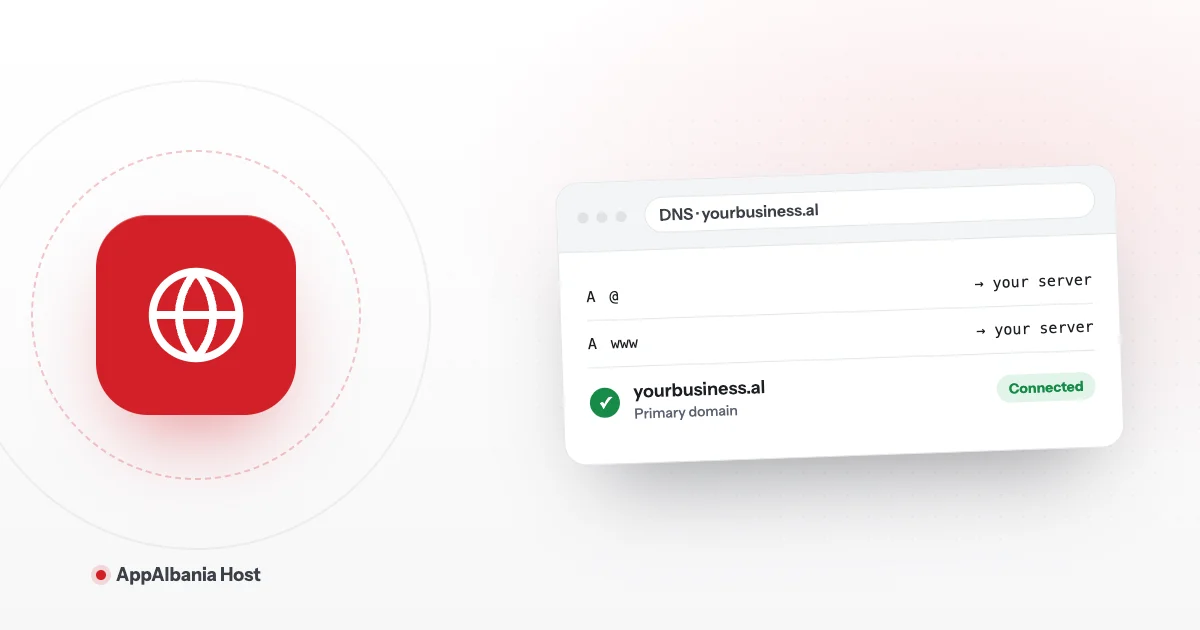
To connect your domain to WordPress hosting, create two DNS records of type A (for @ and for www) at the company where you bought your domain, and point them to your server's IP address. Once the change has spread, check the domain under Settings → General → Site Domains in the panel and install the free SSL certificate.
Below we explain every step in plain words, using the exact button names from the hosting panel.
What a domain and DNS are
A domain is your website address, for example yourbusiness.com. You buy it from a domain registrar, the company that sold you the domain, whether it is a .al, a .com or another ending.
DNS is like the internet's phone book. When someone types your domain, DNS tells the browser which server your website lives on. DNS instructions are called records. The most important record for us is the A record, which links a name to a server's IP address (an IP address is the unique number of a server on the internet).
Hosting and domains are two separate things. Even if your domain was bought somewhere else, you can easily point it to your site at AppAlbania Host.
Step 1: Find your server's IP address
Before you change DNS, you need the IP address your domain should point to. You can find it in the hosting panel:
- Sign in to your account and click Open hosting panel.
- Open your site from the sites list.
- Go to File & Access → SFTP. The SFTP Info box shows the server IP address.
Not sure? Write to us on the support page and we will send you the exact records to add.
Step 2: Create the A records at your domain registrar
Sign in to the control panel of the company where you bought the domain and find the DNS section (usually called "DNS", "DNS Management" or "Zone Editor"). There, create or edit two records:
| Type | Name (Host) | Value (Points to) |
|---|---|---|
| A | @ | The server IP address from the panel |
| A | www | The same IP address |
The @ symbol means the domain itself (yourbusiness.com), while www is the version with www in front (www.yourbusiness.com). We create both so your site opens whichever way visitors type it.
If another A record for @ or www already points to an old server, change it or delete it. Two A records with different addresses for the same name make your site load sometimes from one server and sometimes from the other.
Step 3: Wait for DNS to spread
DNS changes do not happen instantly everywhere in the world. They can take from a few minutes up to 24–48 hours. This is called DNS propagation.
During this time, some visitors may still see the old site while others see the new one. This is normal and needs no action from you. Avoid changing the records again and again while you wait, because each change starts the spreading over. Try the domain from your phone on mobile data or from a different browser. If the site still does not open after 48 hours, check your records again or contact us.
Step 4: Check the domain in Site Domains in the panel
Your site's domains are managed under Settings → General, in the Site Domains section. The table has three columns:
- DOMAIN: the domain name.
- TYPE: Primary is the main address of the site, while Redirect is a domain that sends visitors to the primary domain.
- REDIRECT TO: where the domain redirects, for example
www.yourbusiness.comredirects toyourbusiness.com.
The domain you entered at signup appears here as the primary domain. The www redirect matters: visitors and Google always see one single address, and you do not end up with two copies of the same page.
If you want to add another domain to the same site, click Add New Domain and fill in the form. Remember that the new domain also needs A records at its registrar, just like in Step 2.
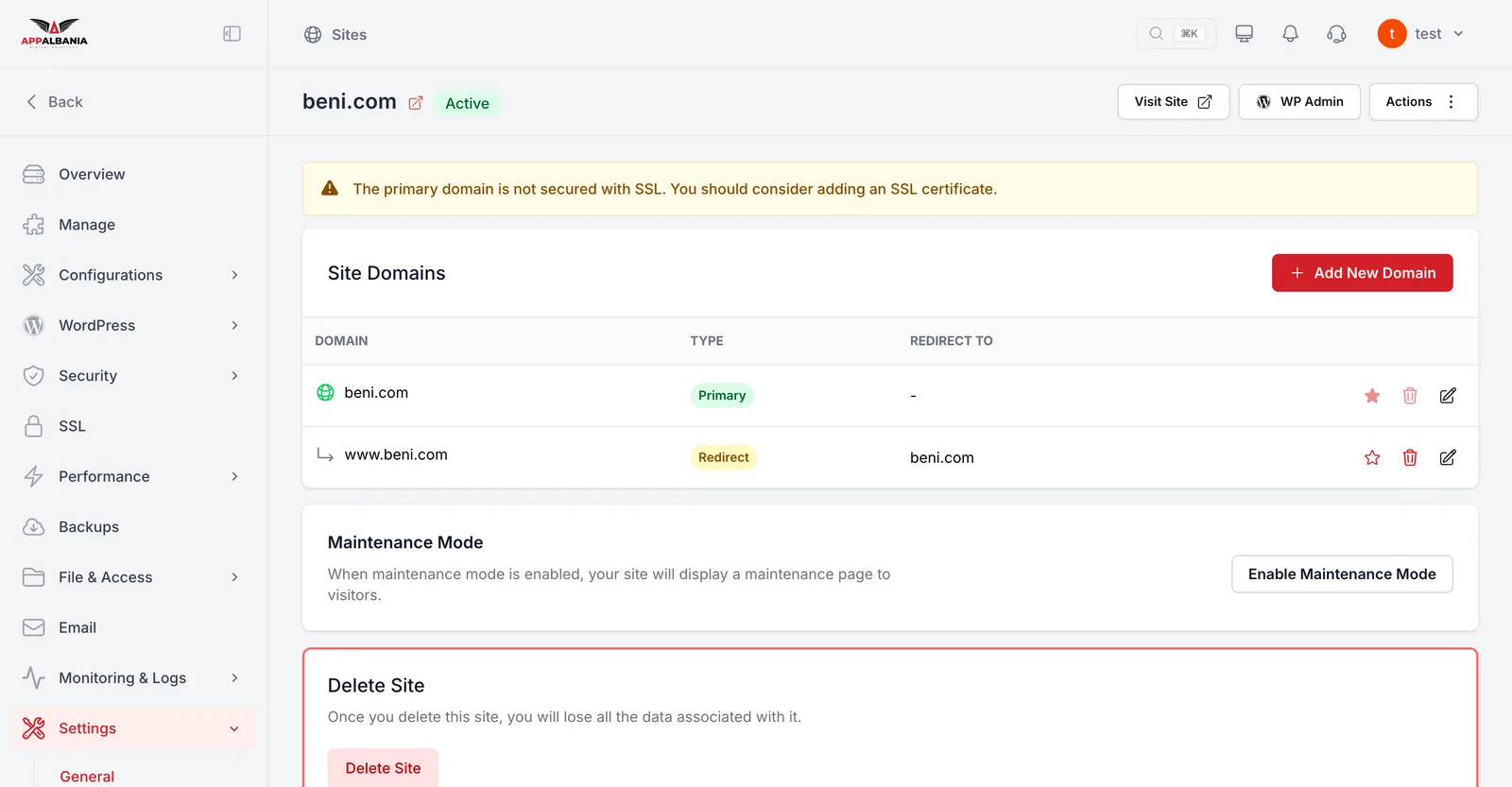
The same page also has Maintenance Mode. If your site is not ready yet, you can turn it on so visitors see a maintenance page until you finish. Learn more in the guide to managing WordPress.
If you use Cloudflare
Cloudflare is a service that sits between your visitors and your server. If your domain goes through the Cloudflare proxy (the orange cloud), take this extra step:
- In the panel, go to Configurations → Nginx.
- In Config Manager, turn on My site is behind Cloudflare proxy. This way the server logs your visitors' real IP addresses instead of Cloudflare's.
For an SSL certificate with Cloudflare, the panel also offers Cloudflare Origin CA. We explain it in the SSL guide.
Final step: Turn on HTTPS with free SSL
Once your domain points to the site, install an SSL certificate (the padlock in the browser). Go to SSL and choose Let's Encrypt, the free certificate. Let's Encrypt only works when the domain's DNS already points to the site, so wait until Step 3 is complete.
After installation, the HTTPS field on the Overview page changes to Enabled. Until then, Settings shows the warning "The primary domain is not secured with SSL". You will find the full instructions in how to install a free SSL certificate on WordPress.
Summary
To connect your domain: find the IP address under SFTP Info, create A records for @ and www at your registrar, wait for DNS to spread, check Site Domains in the panel and install SSL with Let's Encrypt. If you are just starting out, also read how to get started with WordPress hosting. No hosting yet? See our plans. If you get stuck, write to us and we will help you with the exact records.
Frequently asked questions
How long does it take for my domain to connect to my hosting?
DNS changes can take from a few minutes up to 24–48 hours. During that time some visitors may still see the old site.
Do I have to transfer my domain to AppAlbania Host?
No. Your domain can stay with the company where you bought it. You only need A records for @ and www that point to your server's IP address.
Where do I find the IP address for the A record?
In the hosting panel, go to File & Access → SFTP. The SFTP Info box shows the server IP address. You can also ask us for the exact records through the support page.
Why will Let's Encrypt not issue a certificate for my domain?
Let's Encrypt needs your domain's DNS to already point to the site. Check your A records, wait for DNS propagation and try again.