How to make WordPress send email reliably with SMTP
WordPress emails landing in spam? Connect SMTP with Postmark, Sendgrid, Mailgun or your own server straight from the panel, with no extra plugin.
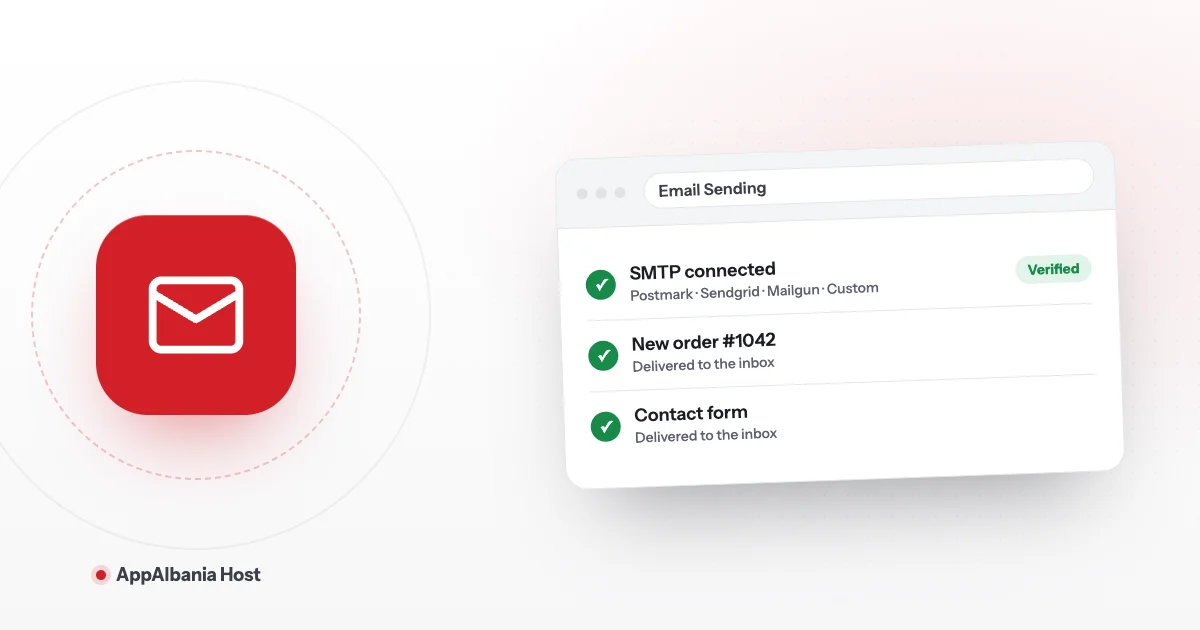
To make WordPress send email reliably, connect it to an SMTP service. In the AppAlbania Host panel, open Email → Email Sending, pick Postmark, Sendgrid, Mailgun or Custom, fill in your details and click Verify Connection and Save Changes. You do not need an SMTP plugin in WordPress.
Why doesn't WordPress send email properly?
WordPress sends a lot of automatic email: messages from your contact form, WooCommerce order notifications, password reset links and new-user notices. These emails matter to your business.
By default, WordPress tries to send them directly from the site's server. Many email services, such as Gmail or Outlook, do not trust these messages because they are not verified. The result: emails land in the Spam folder or never arrive at all. Your customer does not get the order confirmation, and you never see the contact form message.
The fix is SMTP ("Simple Mail Transfer Protocol" — the standard way servers send email). When WordPress sends email through a dedicated SMTP service, your messages are far more likely to reach the inbox.
What this feature is, and what it is not
The Email Sending section in the panel is only for your WordPress site to send email. It covers:
- messages from contact forms;
- WooCommerce order emails;
- password resets and WordPress notifications.
This is not mailbox hosting. It does not create addresses like info@yourdomain.com where you read your mail. For mailboxes you need a separate email service. If you have questions, write to us on the support page.
What you need before you start
Have these ready in advance, so the setup only takes a few minutes:
- A domain you control — you need access at your domain registrar to add DNS records.
- An account with an SMTP provider — Postmark, Sendgrid, Mailgun or another SMTP server.
- Your SMTP details — username and password (and, for Custom, the host and port).
- A sender address — for example notifications@yourdomain.com or orders@yourdomain.com.
Keep your passwords somewhere safe and do not send them in a plain email or chat message.
Choose your SMTP provider
The panel supports four options. Pick the one that fits you:
| Option | When to choose it |
|---|---|
| Postmark | If you have, or will open, a Postmark account. |
| Sendgrid | If you already use Sendgrid. |
| Mailgun | If you already use Mailgun. |
| Custom | If you have another SMTP server (for example from your email provider), with its own host and port. |
Before you continue, open an account with your chosen provider and follow its instructions to verify your domain. The provider usually gives you a few DNS records to add at your domain registrar. If you are not sure how DNS works, read our guide on how to connect your domain. Then get your SMTP username and password from the provider.
Step by step: set up Email Sending in the panel
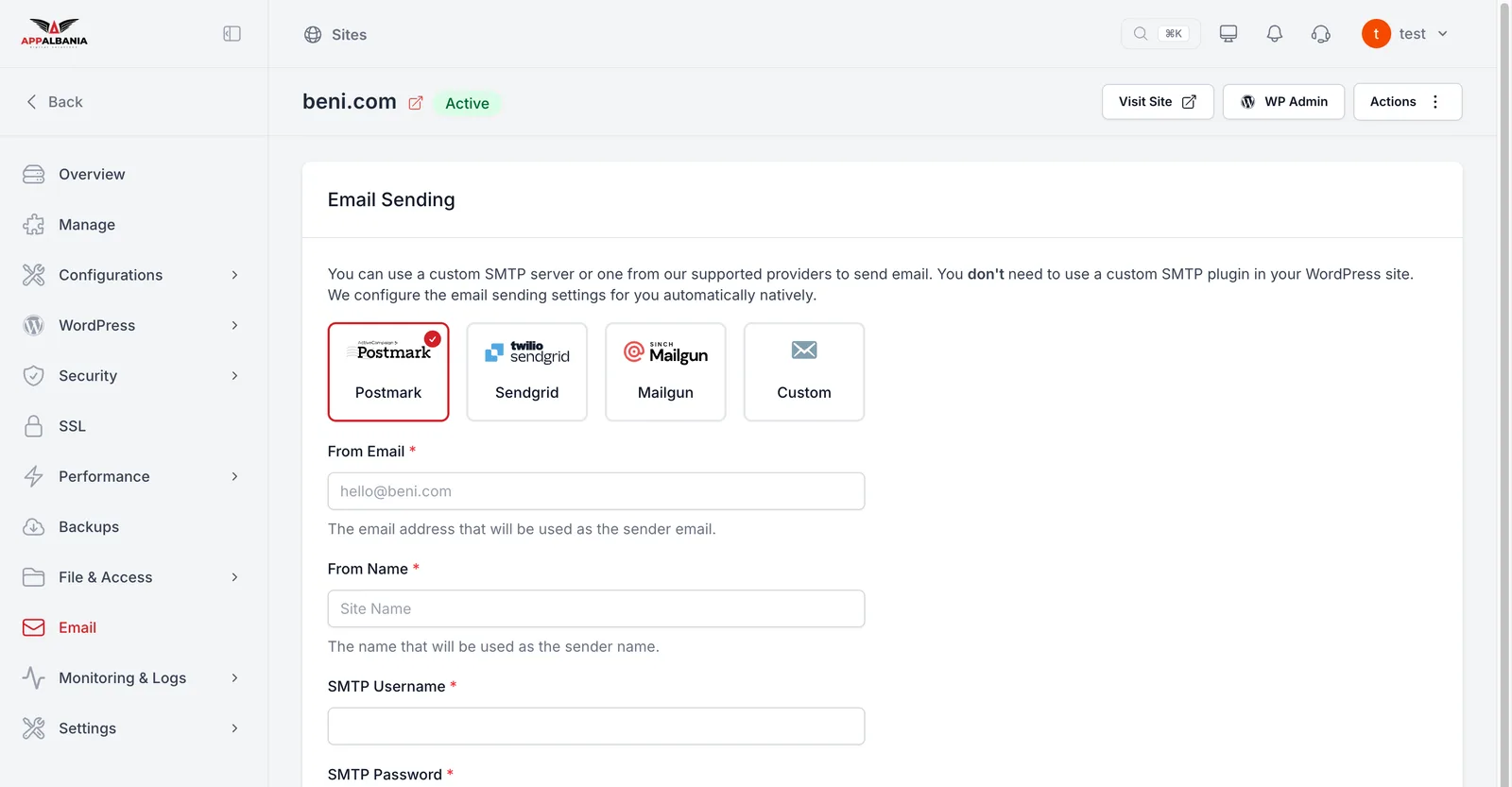
- Log in to your account at host.appalbania.com/account and click Open hosting panel. You are signed in with one click, with no second password.
- Choose your site from the list and open Email in the sidebar.
- Under Email Sending, choose your provider: Postmark, Sendgrid, Mailgun or Custom.
- Fill in From Email — the sender address, for example notifications@yourdomain.com. Use an address on the domain you verified with the provider.
- Fill in From Name — the name customers see in their inbox, for example your business name.
- Enter the SMTP Username and SMTP Password your provider gave you.
- If you chose Custom, also fill in the SMTP server host and port.
- Click Verify Connection and Save Changes. The panel checks the connection before saving.
You do not need to install an SMTP plugin in WordPress. Everything is configured directly from the panel. If you used an SMTP plugin before, you can deactivate it so you do not have two setups at once.
Test that your emails arrive
Once your changes are saved, run a simple test:
- Fill in the contact form on your site and check that the message arrives.
- Request a password reset for a test user and check the inbox.
- If you run a WooCommerce shop, place a test order.
Repeat this test whenever you change provider, SMTP password or sender address, and after moving your site. That way you notice straight away if something is wrong, before your customers do.
Check the Spam folder too. If the email is there, the domain is usually not fully verified with your SMTP provider — review the DNS records the provider gave you.
When verification fails
If Verify Connection and Save Changes does not succeed, check these things:
- Username or password — copy them again from the provider, without extra spaces.
- From Email — it must be on a domain your provider allows.
- Host and port (Custom only) — compare them with your provider's instructions.
For more detail, you can use the logs in the panel. Read our troubleshooting guide to learn how to read them. If it still does not work, contact us and our team will help.
Tips for more reliable email
- Always use an address on your own domain as the From Email, not a Gmail address.
- Keep a clear From Name that customers recognise.
- Turn on HTTPS for your site — read how to install a free SSL certificate. A secure site builds more trust.
- Keep your site protected with the WordPress security settings, so nobody can misuse it.
Summary
WordPress needs SMTP so that contact, order and password emails actually reach your customers. With AppAlbania Host you set it up in a few minutes under Email → Email Sending, with no extra plugin. Don't have hosting yet? See our plans, or request a free migration of your existing site.
Frequently asked questions
Do I need an SMTP plugin in WordPress?
No. With AppAlbania Host, SMTP is configured directly in the panel under Email Sending, with no plugin in WordPress.
Why do my WordPress emails go to spam?
By default they are sent straight from the server without verification. With an SMTP provider such as Postmark, Sendgrid or Mailgun and a verified domain, emails are delivered much better.
Can I create an address like info@mydomain.com with this feature?
No. Email Sending is only for WordPress to send email. It is not mailbox hosting.
What do I do if the connection check fails?
Check your username, password, From Email and, for Custom, the host and port. If it still fails, contact our support team.