WordPress security: firewall, scanner and protections
Protect your WordPress site from the panel: 7G/8G firewall, bad bot blocking, XML-RPC, site password, vulnerability scanner and integrity checks.
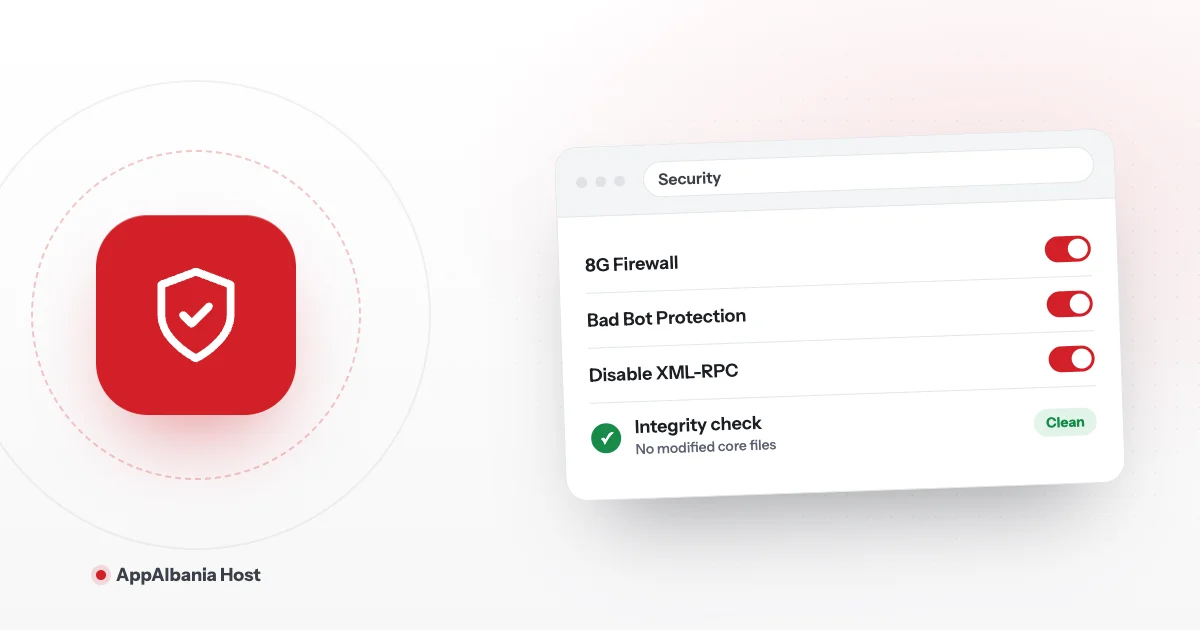
The simplest way to protect a WordPress site on AppAlbania Host is the Security section in the panel. There you turn on the 8G firewall, block bad bots, close XML-RPC and the file editor, then check your site with the vulnerability scanner and the integrity checker. It all takes a few clicks, with no security plugin.
Why your WordPress site needs protection
WordPress is the most widely used website platform, so it is also the most common target of automated attacks. Automated programs try passwords every day, look for outdated plugins and hunt for forgotten files. It does not matter if your site is small — these attacks do not pick and choose, they try everything.
An infected site can redirect visitors to dangerous pages, send spam or lose its ranking on Google. The good news: with a few correct settings, the risk drops a lot.
Where to find the security settings
- Log in to your account and click Open hosting panel — you are signed in with one click, with no second password.
- Choose your site from the list.
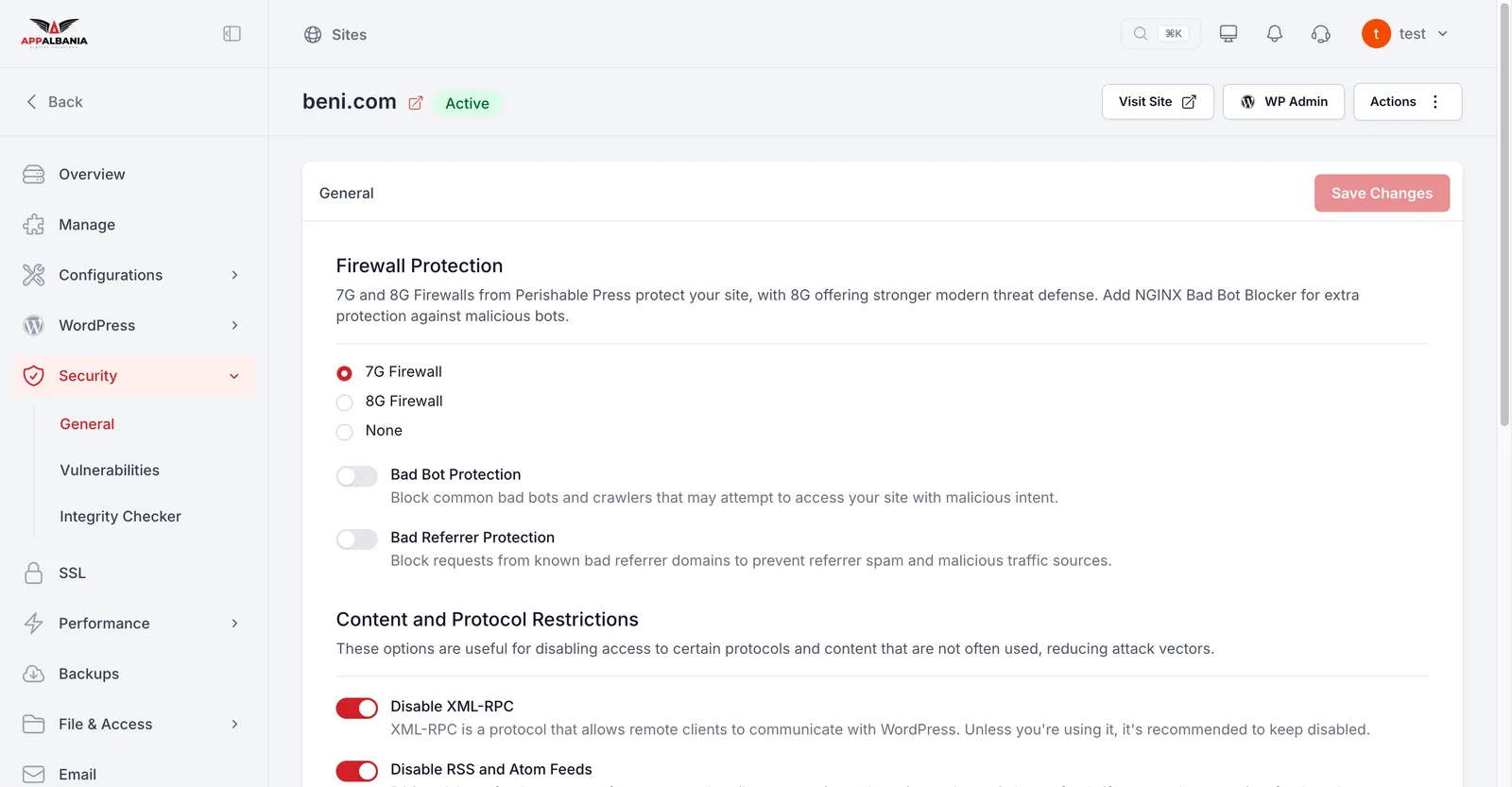
- Open Security in the sidebar. You will see three parts: General (the main protections), Vulnerabilities (the vulnerability scanner) and Integrity Checker.
7G or 8G firewall
A firewall is a filter that stops suspicious requests before they reach WordPress. Under Firewall Protection you have three choices:
- 8G Firewall — the strongest, most modern protection. We recommend it for most sites.
- 7G Firewall — the previous version of the same filter.
- None — no firewall. We do not recommend it.
After you turn it on, visit your site and test your forms and checkout. If something is blocked by mistake, write to us.
The main protections under General
Below the firewall you will find a list of on/off switches. Here is what each one does, in plain words:
Blocking bad traffic
- Bad Bot Protection — blocks bad "bots", automated programs that scan websites for weaknesses.
- Bad Referrer Protection — blocks visits coming from sites known for spam.
- Disable XML-RPC — closes XML-RPC, an old communication door in WordPress that is often used for password-guessing attacks. Some older tools may rely on it, so test your site after closing it.
Protecting folders and files
- Protect wp-content Directory and Protect wp-includes Directory — protect the main WordPress folders from direct access.
- Disable wp-links-opml.php — closes an old file that almost nobody uses.
- Disable Themes & Plugins Editor — removes the code editor from the WordPress dashboard. If someone gets into your account, they cannot change code there.
Options that depend on your site
- Disable RSS and Atom Feeds — turns off feeds (automatic lists of your posts). Keep them on if you run a blog.
- Disable Comments and Disable Trackbacks — useful if you do not use comments, as they reduce spam.
- Disable WP Admin and Disable Login (wp-login.php) — close access to the admin area. Do not turn them on unless you are sure; they can stop you from logging in yourself.
- Add Security Headers — adds security headers (extra instructions for the browser). Turn it on only after your site has SSL. Read how to install a free SSL certificate.
Be careful with Disable Themes & Plugins Update and Installation. This option stops plugins and themes from being installed or updated, but it also turns off background auto-updates — including security releases. If you turn it on, you must handle updates yourself. For most beginners, leave it off.
HTTP Basic Authentication: a password for the whole site
HTTP Basic Authentication puts a password on your whole site at web-server level, before WordPress even loads. Anyone who visits sees a box asking for a username and password.
This is ideal when:
- your site is still being built and you do not want the public to see it;
- you have a test copy (staging) where you try out changes.
Do not turn it on for a public site that receives visitors or orders, because everyone will see the password box. For a short pause for visitors, use maintenance mode — we explain it in managing WordPress from the panel.
The vulnerability scanner
Under Vulnerabilities you will find the AppAlbania Host Free Scanner. It checks your plugins, themes and WordPress core for known vulnerabilities — published security flaws that attackers can exploit.
Important: the scanner only detects problems, it does not fix them automatically ("Detection only, no automatic patching"). When you see a vulnerability:
- Update the plugin, theme or WordPress under WordPress → Plugins or Themes in the panel.
- If there is no update yet, deactivate the plugin until a safe version is released.
- Before big updates, take a backup — read our backup guide.
The integrity checker
The Security Integrity Checker checks whether the WordPress core files have been modified. If a core file was changed without your knowledge, it can be a sign that the site has been infected.
- Click Start Scan for an immediate check.
- Turn on Enable Automated Daily Scan so the check runs every day automatically.
If the scan finds modified files and you do not know why, contact support before you delete anything.
Recommended settings checklist for beginners
If you want a safe starting point, follow this list:
- Firewall Protection: 8G Firewall.
- Bad Bot Protection: on.
- Bad Referrer Protection: on.
- Disable XML-RPC: on (if you do not use it).
- Protect wp-content Directory and Protect wp-includes Directory: on.
- Disable Themes & Plugins Editor: on.
- Add Security Headers: on, only after you have SSL.
- Disable Themes & Plugins Update and Installation: off, so security updates keep running.
- Integrity Checker: turn on Enable Automated Daily Scan.
- Vulnerabilities: check it regularly and update whatever it flags.
Protect your account at host.appalbania.com too: under Profile, turn on two-factor authentication (2FA — an extra code on top of your password).
Summary
With the Security section in AppAlbania Host, your site is protected by a firewall, bot blocking, a server-level password, a vulnerability scanner and daily integrity checks — with no extra plugin. Choose one of our plans, or request a free migration of your existing site.
Frequently asked questions
Which firewall should I choose, 7G or 8G?
For most sites we recommend the 8G Firewall, as it offers the strongest, most modern protection. After turning it on, test your forms and checkout.
Does the vulnerability scanner fix problems by itself?
No. The scanner only detects known vulnerabilities. You need to update or deactivate the affected plugin, theme or WordPress version.
Do I need a security plugin in WordPress?
The main protections, such as the firewall, bot blocking, the scanner and the integrity checker, are built into the panel, so you do not need a plugin for them.
How do I password-protect a site that is still being built?
Turn on HTTP Basic Authentication under Security. Anyone visiting the site will then need a username and password.