
Chapter 9 of 15
Site security
How to turn on the 7G/8G firewall, bot protection, disable XML-RPC, password-protect your site and run security scans in the hosting panel.
In this guide
This chapter explains the security tools in the Security section of the hosting panel. Most of them are a single switch you turn on or off, with no WordPress code to edit.
Where to find the security settings
- Sign in to your account at host.appalbania.com/account and click Open hosting panel.
- Select your site from the sites list.
- In the sidebar open Security. You will see three pages: General, Vulnerabilities and Integrity Checker.
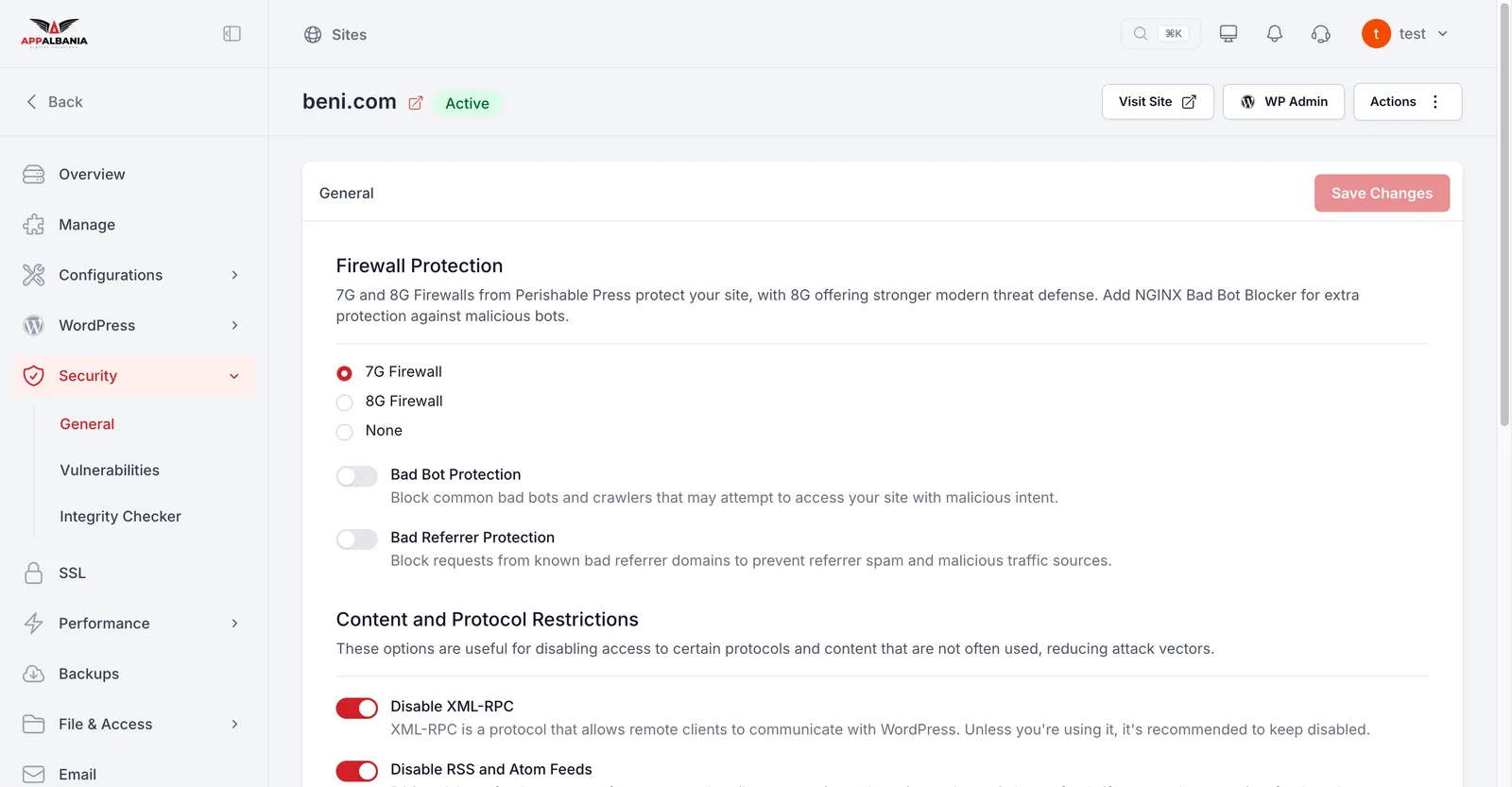
Firewall: 7G or 8G
A firewall is a filter in the web server that blocks suspicious requests (for example, attempts to inject code) before they reach WordPress. Under Firewall Protection you have three choices:
- 8G Firewall – the newer, stronger version. Recommended for most sites.
- 7G Firewall – the previous version, slightly more relaxed.
- None – no firewall. Use it only temporarily, if you suspect the firewall is blocking something legitimate.
After changing the firewall, test your site: forms, the cart and logging in to WP Admin. If something breaks, switch back to 7G and write to support.
Protection switches under General
Each switch turns on a ready-made rule. Here is what the main ones do:
- Bad Bot Protection and Bad Referrer Protection – block known harmful bots and visits from spam sites.
- Disable XML-RPC – turns off
xmlrpc.php, an old entry point attackers often use to guess passwords. Turn it off unless you use the WordPress mobile app or Jetpack. - Protect wp-content Directory and Protect wp-includes Directory – stop files in these folders from being run directly.
- Disable Themes & Plugins Editor – removes the code editor from WP Admin. If someone steals your password, they still cannot change code from the WordPress dashboard.
- Disable RSS and Atom Feeds, Disable wp-links-opml.php, Disable Comments, Disable Trackbacks – switch off things your site does not use.
- Add Security Headers – adds security headers to every response. Turn it on only after your site has SSL (see SSL and HTTPS).
Be careful with Disable WP Admin, Disable Login (wp-login.php) and Disable Themes & Plugins Update and Installation. The first two can lock you out of the WordPress dashboard. The third also turns off background auto-updates, including security releases.
Password-protect the whole site
HTTP Basic Authentication asks for a username and password before any page opens. It is ideal for a site that is not ready yet or for a test copy.
- Under Security → General find HTTP Basic Authentication.
- Turn it on and set a username and password.
- Save. Open the site in a private window to test it.
When the site goes live, turn it off, otherwise visitors and Google cannot see it.
Vulnerability scanning
Under Security → Vulnerabilities you will find the AppAlbania Host Free Scanner. It checks your plugins, themes and WordPress core for publicly known vulnerabilities. The scanner only detects problems; it does not patch anything automatically. When you see a warning, update that item (see WordPress) or deactivate it if no update exists.
Integrity checking
The Security Integrity Checker checks whether WordPress core files have been modified. A modified core file is often a sign of malware.
- Open Security → Integrity Checker.
- Click Start Scan for an immediate check.
- Turn on Enable Automated Daily Scan so the check runs every day.
If the scan finds modified files and you do not know why, open a ticket with support.
Protect your account too
Your account at host.appalbania.com opens the hosting panel in one click, so it needs strong protection. Use a long password and turn on two-factor authentication (2FA) in the Profile tab. The steps are in Your account. For more tips read the WordPress security guide.
A good starting setup
- 8G Firewall, Bad Bot Protection and Bad Referrer Protection on.
- Disable XML-RPC and Disable Themes & Plugins Editor on.
- Add Security Headers once you have SSL.
- Daily integrity scan on, and a regular look at Vulnerabilities.
- 2FA on for your account.
Need help? Write to support.