
Chapter 15 of 15
Migration plugin (open source)
Migration by AppAlbania: our free, open-source WordPress backup, restore and migration plugin, with download and step-by-step instructions.
In this guide
Migration by AppAlbania is the WordPress backup, restore and migration plugin built by AppAlbania and shared as an open-source project (GPL-2.0 licence). It is free forever: use it to move to us, or simply to back up your own site.
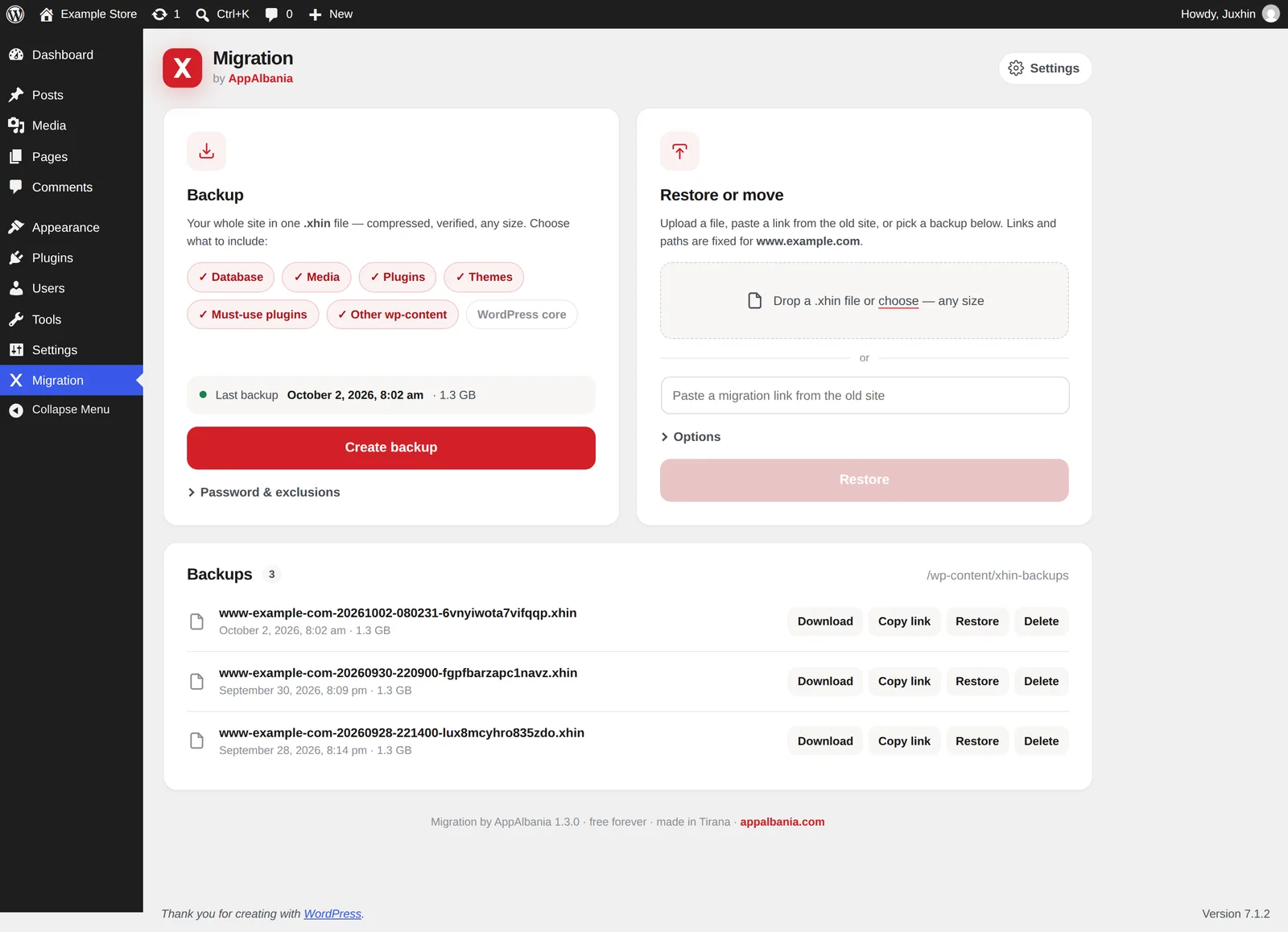
What it does
- One file for the whole site. Database, media, plugins, themes, must-use plugins and the rest of
wp-contentgo into one.xhinfile, optionally with the WordPress core files too. - No size limits. It works in small steps with checkpoints, so server time and upload limits don't matter. It is built for very large sites.
- Resumes after interruptions. If the tab closes, the connection drops or the server stops a request, work continues from the last checkpoint.
- Safe restores. The database is imported into temporary tables and switched in at the end in one step. The site keeps working until the last step.
- Links fixed automatically. The old site's addresses and paths are replaced with the new ones, including inside serialized data and JSON.
- Compressed and verified, with optional password-based AES-256 encryption.
Installing it
- Download the zip with the button above. Don't unzip it: WordPress wants the zip as it is.
- In WordPress go to Plugins → Add New → Upload Plugin, choose the zip and click Install Now.
- Click Activate. Migration appears in the left menu.
Make a backup
- Open Migration. On the Backup card, choose what to include (Database, Media, Plugins, Themes…).
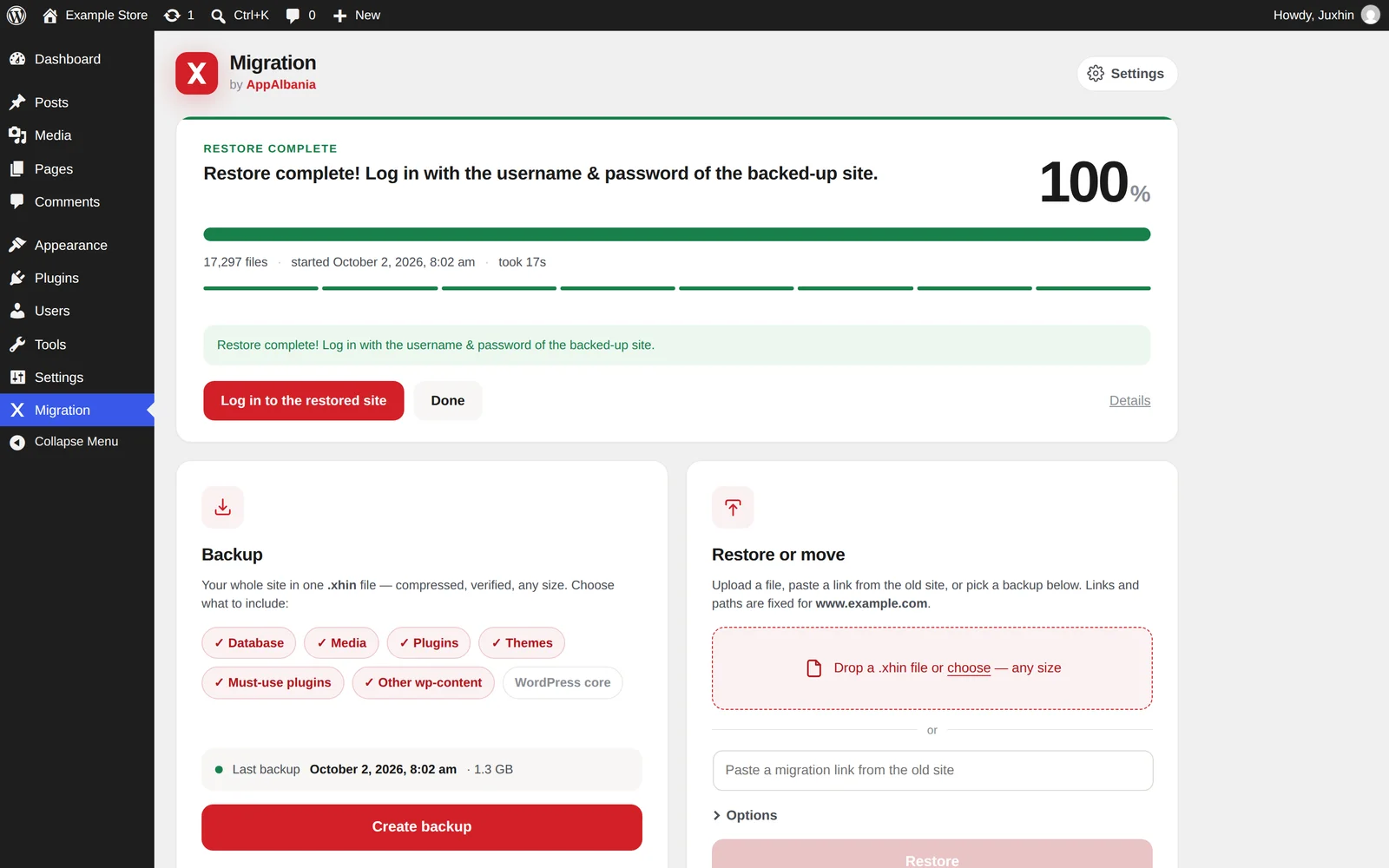
- Click Create backup. Percentage, speed and time left are shown live.
- When it finishes, the backup appears in the Backups list with Download, Copy link, Restore and Delete.
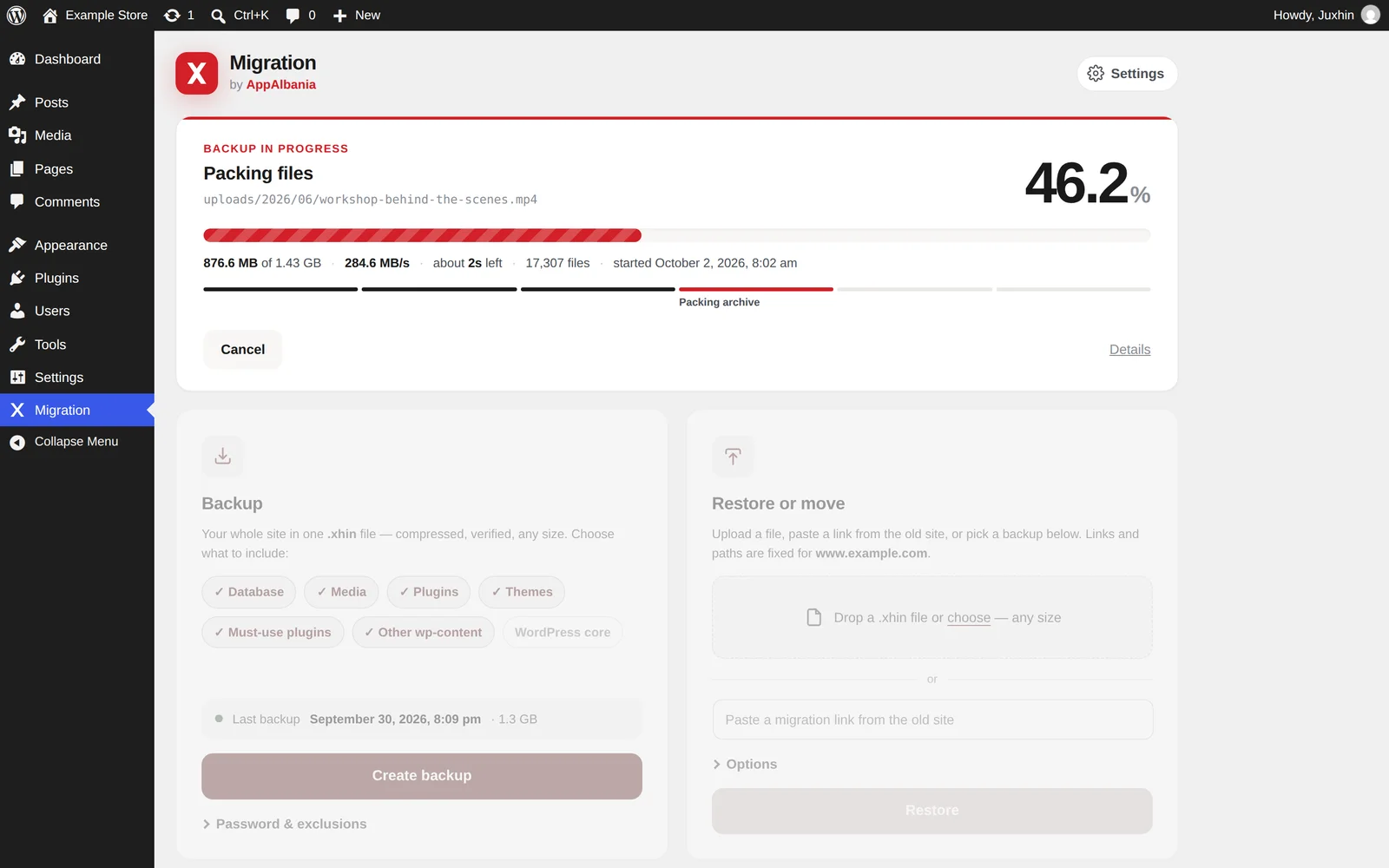
Under Password & exclusions you can protect the backup with a password (AES-256 encryption) or skip folders you don't need.
Move your site to AppAlbania Host
There are two ways. In both, the new site must already exist on our hosting. WP Admin opens with one click from the hosting panel.
A) With a migration link (fastest)
- On the old site, click Copy link in the backups list. This is a signed link that expires.
- On the new site, install the plugin, open Migration and paste the link under Restore or move.
- Click Restore. The new server pulls the file directly from the old one and resumes if the connection drops.
B) With a file
- On the old site, click Download and save the
.xhinfile. - On the new site, under Restore or move, drop the file or click choose. It uploads in pieces, with no size limit.
- Click Restore.
Choose what to restore
Before restoring, a window lets you pick the parts: Database, Media, Plugins, Themes, Must-use plugins, Other wp-content, WordPress core. Restore only what you need.
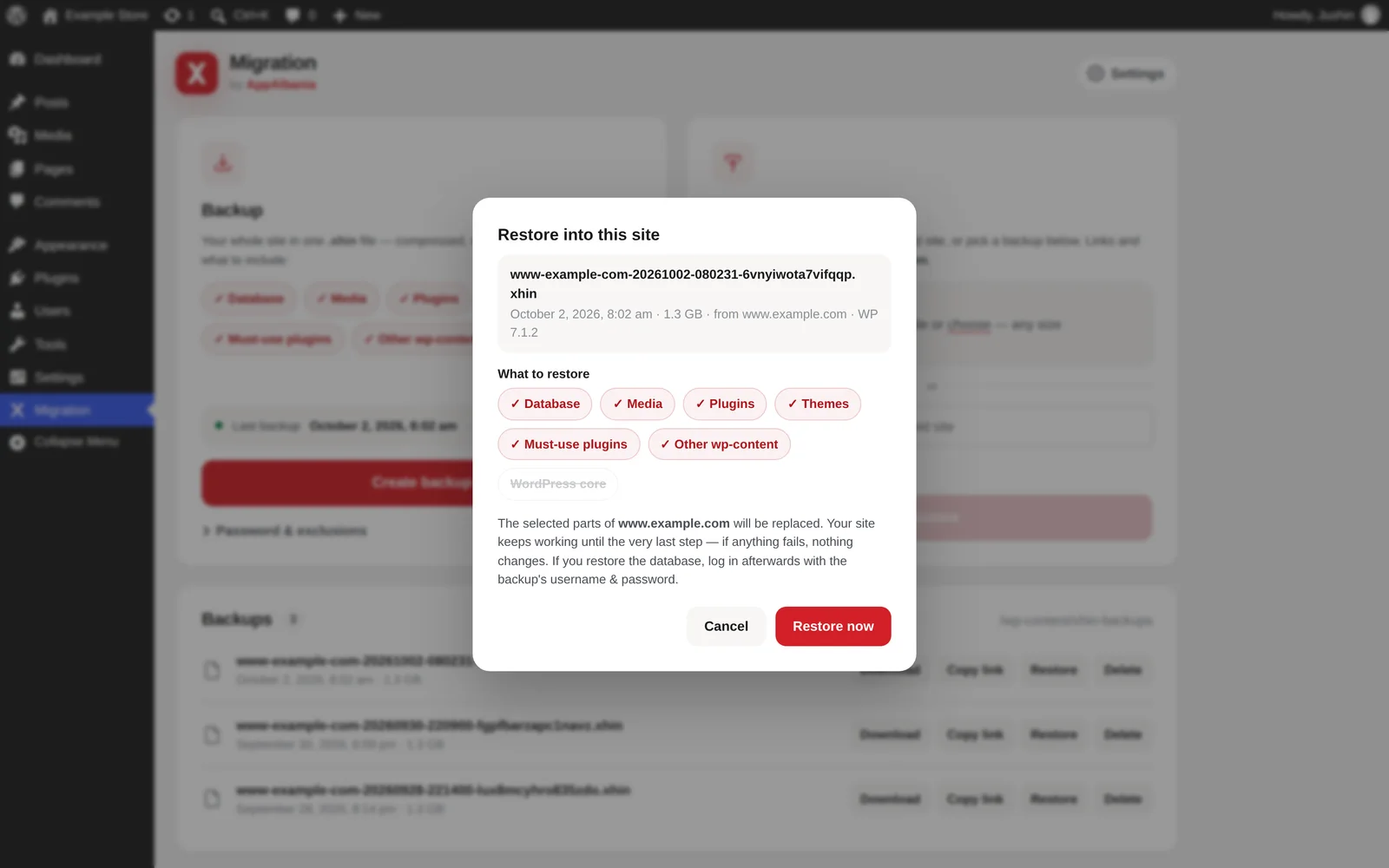
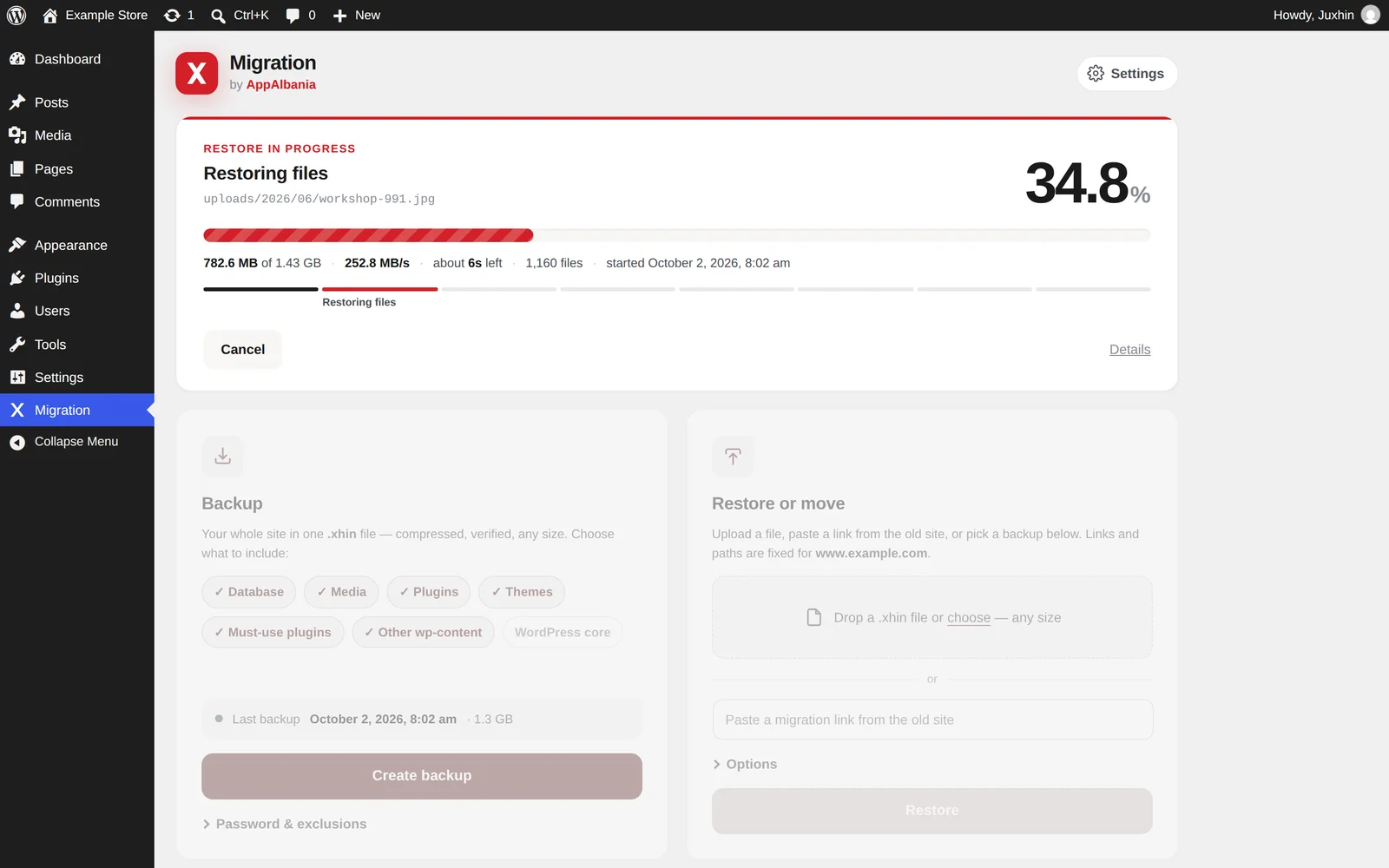
If you restore the database, log in afterwards with the old site's username and password, because the users come from the backup.
After the move
- Check the new site on its temporary address.
- Point your domain to the new hosting. The exact records are in your account; see Domain and DNS.
- Turn on free SSL; see SSL and HTTPS.
Settings and server check
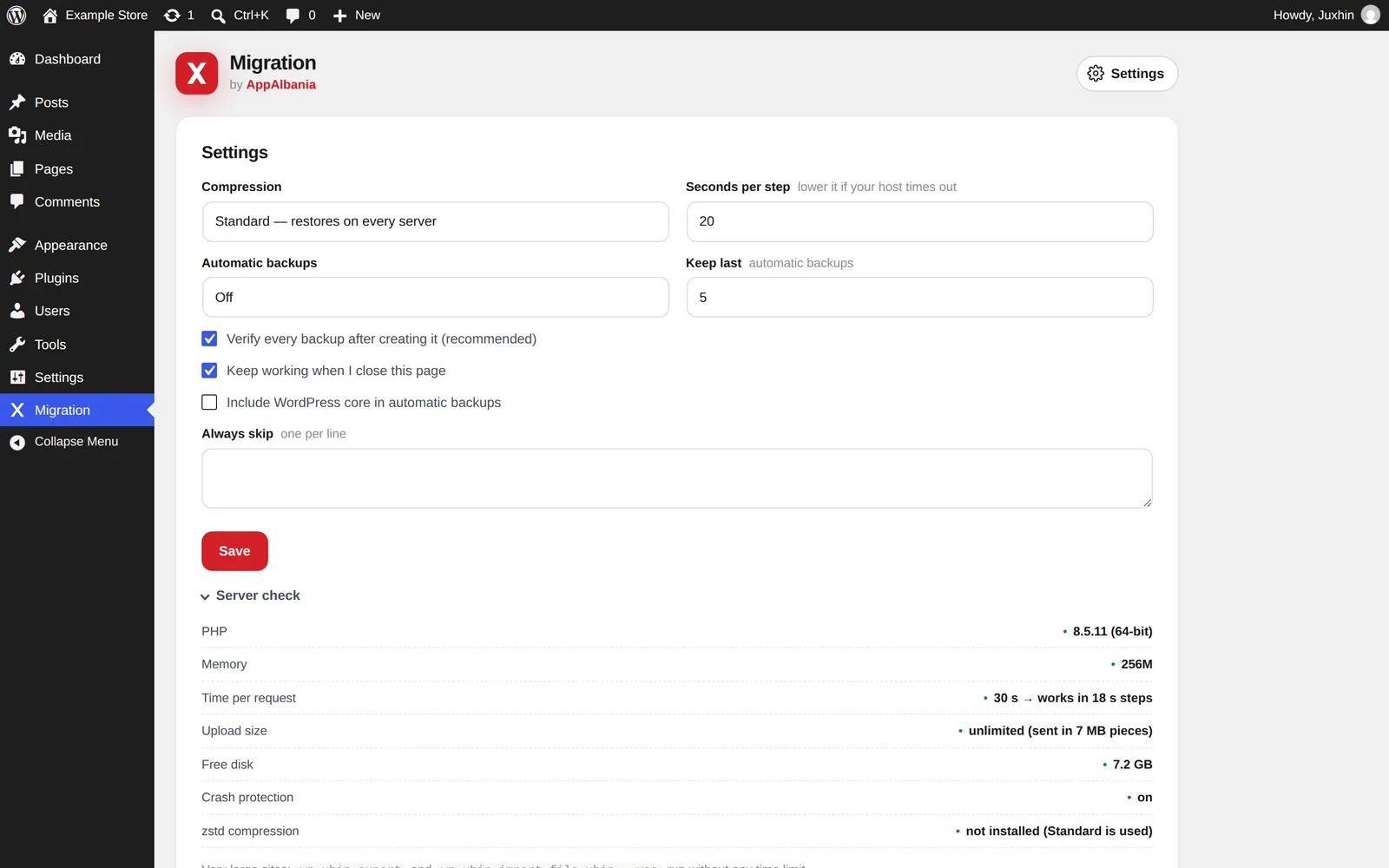
Under Settings you choose the compression, automatic backups (and how many to keep), verification after each backup and whether work continues when you close the page. Server check shows PHP, memory, time per request, upload size and free disk space.
For very large sites, if you have terminal access, you can use WP-CLI with no time limit: wp xhin export to back up and wp xhin import file.xhin --yes to restore.
Rather have us do it? A full migration is free: open the support form and choose Free migration, or see Support and migration.