
Chapter 6 of 15
Managing WordPress
Log in to WP Admin with one click, update WordPress, plugins and themes, manage users and roles, and turn on maintenance mode.
In this guide
Many everyday WordPress tasks can be done directly from the hosting panel, without logging in to WordPress. This chapter covers one-click login, updates, plugins, themes, users and maintenance mode.
One-click login to WP Admin
WP Admin is the WordPress administration area (usually /wp-admin), where you write pages and posts and change the design.
- At host.appalbania.com/account, click Open hosting panel.
- Open your site.
- In the top bar, click WP Admin. You are logged in to WordPress as an administrator, without typing a password.
Next to it you also find Visit Site (opens the public site) and Actions (other actions for the site).
WordPress overview
In the sidebar, choose WordPress → Overview. There you see how many updates are pending and the number of plugins, themes and users. The Update All button updates everything that has a new version.
Updates
Updates bring security and bug fixes. Keep WordPress, plugins and themes up to date at all times.
For one site
- Open WordPress → Overview.
- Review the pending updates.
- Click Update All, or update individually under Plugins and Themes.
- After updating, open the site with Visit Site and check it works.
From the sites list
The Sites list shows each site's domain, PHP version, WordPress version and status. It also has bulk actions: Update all plugins, Update all themes, Update core (WordPress itself) and Update everything (all of them together).
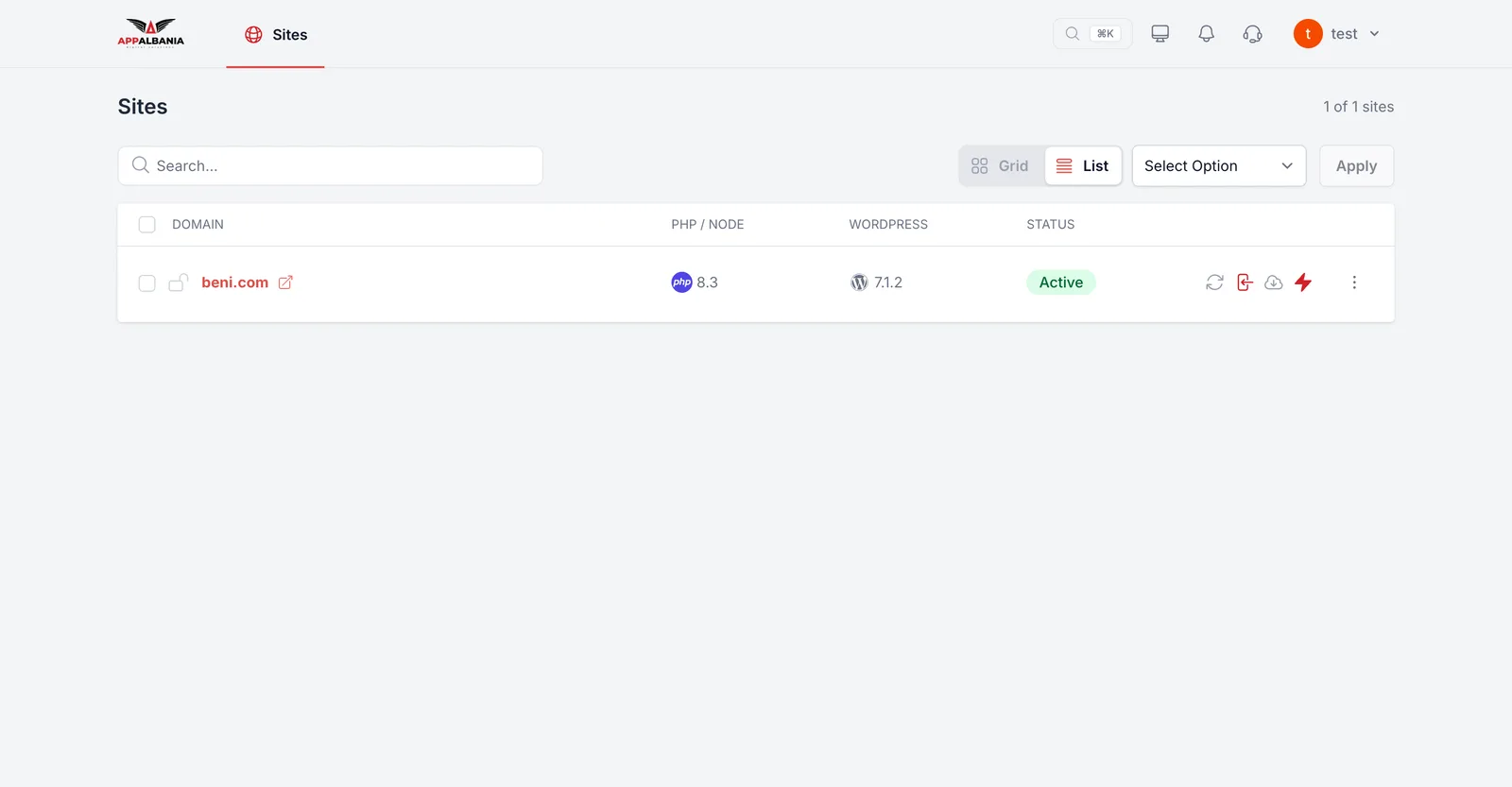
Before major updates, especially on online shops, make sure you have a fresh backup. See Backups.
For automatic updates of WordPress itself, see the Automatic Core Updates option in Configurations.
Plugins
Plugins are add-ons that give WordPress new features (forms, a shop, SEO).
- Open WordPress → Plugins.
- Use the filters All, Active, Inactive and Update Available to find them quickly.
- To install a new plugin, click Add New.
- To update all of them, click Update all plugins.
- If the list does not look right, click Refresh.
Delete inactive plugins you no longer need. Fewer plugins means a faster and safer site.
Themes
The theme controls how the site looks. Open WordPress → Themes to see the installed themes and click Update all themes to update them. You change the active theme inside WP Admin.
Users and roles
Open WordPress → Users to see who has access to the site. You can filter by role:
- Administrator — full control of the site.
- Editor — manages all pages and posts.
- Author — writes and publishes their own posts.
- Contributor — writes posts but cannot publish them.
- Subscriber — can only read and manage their own profile.
- Click Create User.
- Fill in the user's details and choose the role.
- Save.
Give the Administrator role only when truly necessary. Check the list from time to time and remove users you do not recognise. More in Security.
Maintenance mode
When you are working on the site and do not want visitors to see it half-finished, turn on maintenance mode: visitors see a maintenance page instead.
- Open Settings → General.
- Turn on Enable Maintenance Mode.
- When you are done, turn it off again.
You can also see the status on Overview, in the Maintenance mode row. For more tips, read managing WordPress.
Need help?
Write to support, on WhatsApp +355 67 496 3486 or at info@appalbania.com.