
Chapter 13 of 15
Troubleshooting and logs
How to fix permissions, restart PHP or Nginx, read the error logs, and what to check by symptom when your WordPress site is not working.
When your site behaves oddly, most problems are solved with a few simple actions in the panel. This chapter covers the repair tools, where the logs are, and a checklist by symptom.
Manage Services: quick actions
In the hosting panel, open your site and choose Manage in the sidebar. The Manage Services section has these buttons:
| Button | What it does |
|---|---|
| Fix Permission | Fixes file permissions (who may read and write files). Try it when images will not upload or updates fail. |
| Restart PHP | Restarts PHP, the language WordPress runs on. Useful after changing PHP settings or when the site hangs. |
| Restart Nginx | Restarts Nginx, the web server that serves pages to visitors. |
| Restart Docker | Restarts the site's whole environment. The site is unavailable for a short time. |
| Sleep Site | Puts the site to sleep. |
| Update Image | Updates the Docker image, the software package your site runs in. |
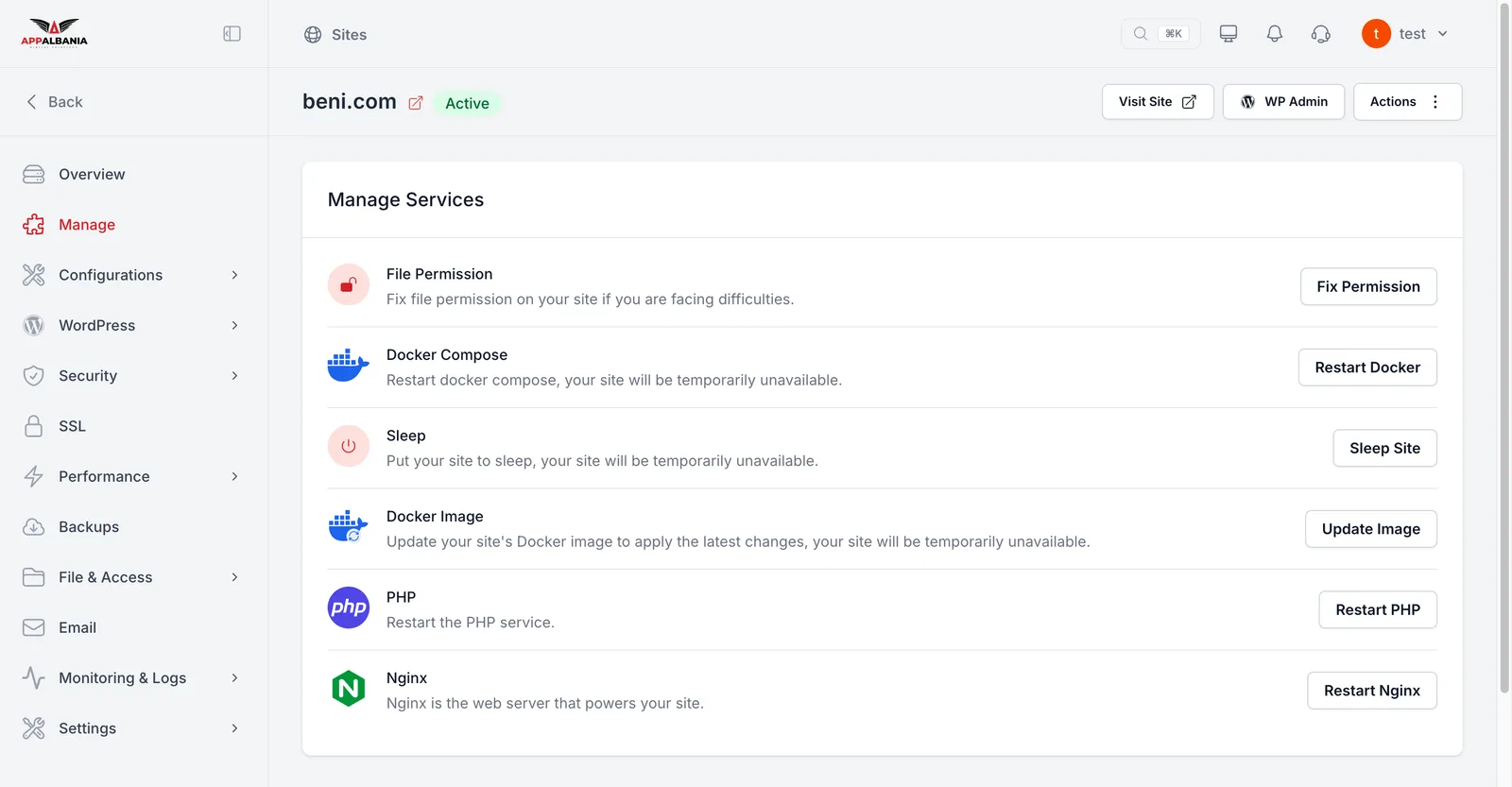
Restart Docker makes the site unreachable for a short time. Try Restart PHP or Restart Nginx first, and use Docker only if those are not enough.
Below, under Credentials, you will find the database and Redis details with copy buttons, in case you need them.
Read the logs
A log is a record where the server writes down what happens, including errors. It usually shows exactly which plugin or file causes the problem.
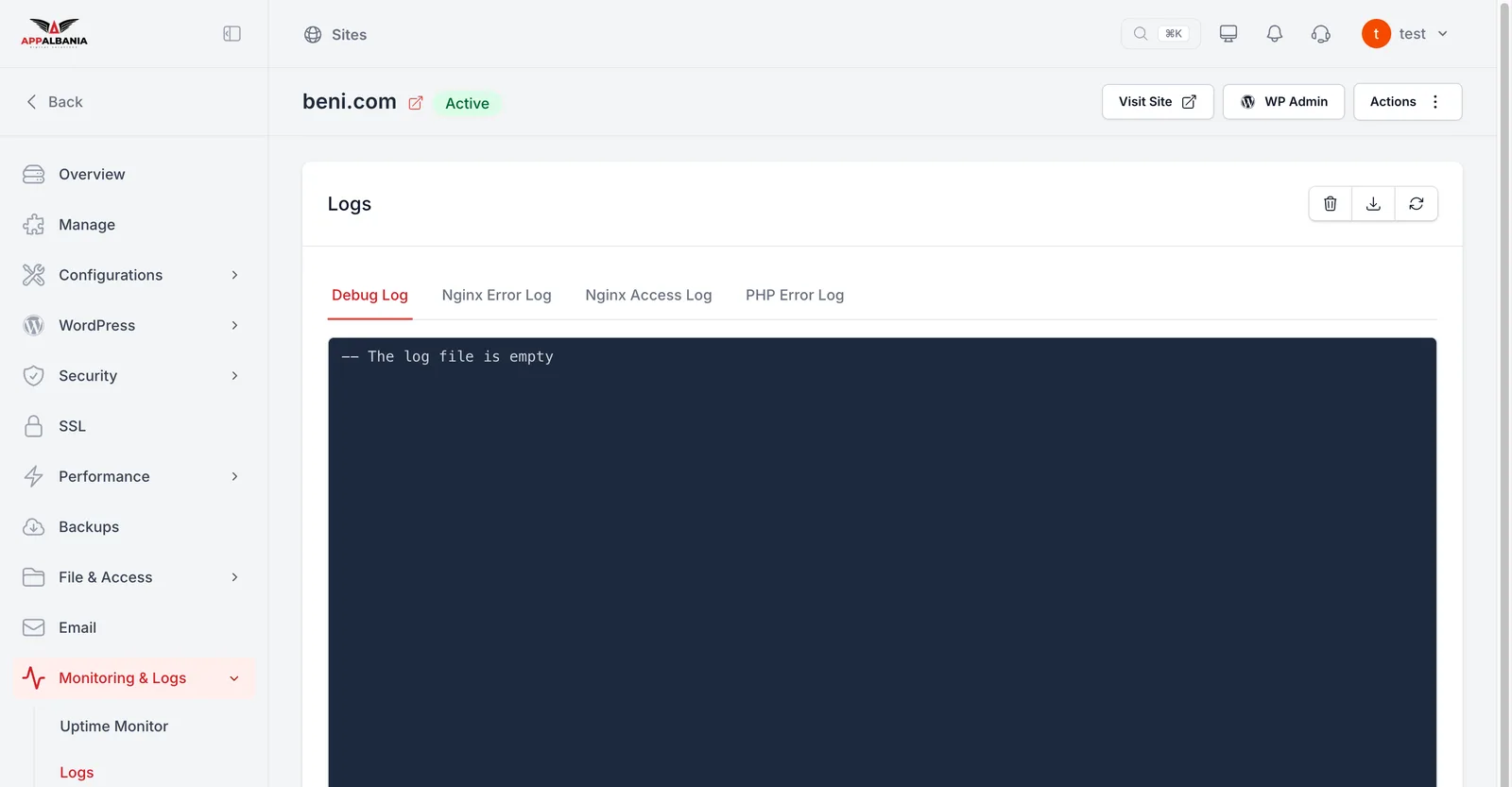
- In the sidebar choose Monitoring & Logs → Logs.
- Pick the log: PHP Error Log (PHP code errors), Debug Log (WordPress errors when debug is on), Nginx Error Log (web server errors) or Nginx Access Log (every request that reaches the site).
- Look at the latest lines and search for the name of a plugin, theme or file.
Turn on the Debug Log
- Go to Configurations → WP Config.
- In WP Config Manager turn on Enable Debug Mode and Enable Debug Log.
- Click Save Changes, repeat the action that causes the error, and read the Debug Log.
Do not leave Enable Debug Display on for a public site: errors will be shown to visitors. Once you find the problem, turn debug off. More in Configurations.
Checklist by symptom
The site does not open at all
- In your account, under Your sites, look at the DNS box. If it says the domain is not pointed yet, the domain does not reach the site yet. See Domain and DNS.
- Check whether you put the site to sleep with Sleep Site.
- Try Restart Nginx, then Restart PHP.
White screen or 500 error
- Read the PHP Error Log; it usually names the plugin or theme at fault.
- If you cannot reach WP Admin, use the File Manager to rename the plugin's folder in wp-content/plugins; WordPress then deactivates that plugin.
- If you recently changed PHP settings, check the PHP Memory Limit.
Changes do not show
- In Performance → Caching click Clear Cache for Page Cache and, if you use it, for Object Cache. See Speed.
Large files will not upload
- Raise Max File Upload Size in Configurations → PHP, then try Fix Permission.
HTTPS does not work
- Check whether Overview shows HTTPS Disabled. Issue a certificate in SSL → Let's Encrypt once the domain points to the site. See SSL.
You cannot log in to WP Admin
- Use the WP Admin button in the panel for one-click login.
- Check in Security → General whether Disable WP Admin, Disable Login or HTTP Basic Authentication are on. See Security.
Emails do not arrive
- Connect an SMTP provider in Email Sending. See Sending email.
For more cases, read the guide Troubleshooting WordPress.
Need help?
If the problem remains, open a support request and paste the relevant lines from the log.