
Chapter 12 of 15
Sending email
How to connect WordPress to an SMTP service (Postmark, Sendgrid, Mailgun or Custom) so forms, orders and password resets send reliably.
In this guide
WordPress sends many emails on its own: contact form messages, WooCommerce orders, password resets. This chapter shows how to send them through a reliable service so they do not end up in spam.
What SMTP is and why you need it
SMTP is the standard way email travels from a server to the recipient's mailbox. When you connect your site to an SMTP service, your site's emails leave from a server built for sending, with the name and address you choose. This greatly improves the chance that the message reaches the inbox.
In the hosting panel this is set up directly on your site. You do not need an SMTP plugin in WordPress: the setting lives in the panel and WordPress uses it automatically.
This feature is only for sending email from WordPress. It is not mailbox hosting: it does not create addresses like info@your-domain for receiving and reading email. For mailboxes, use a separate email service.
Providers you can choose
The panel supports these providers. You create the account with the provider yourself and take the SMTP login details from it.
| Provider | When to choose it |
|---|---|
| Postmark | You have a Postmark account. |
| Sendgrid | You have a Sendgrid account. |
| Mailgun | You have a Mailgun account. |
| Custom | You use any other SMTP server; you add the host and port yourself. |
Connect your site to an SMTP provider
- Sign in to your account and click Open hosting panel.
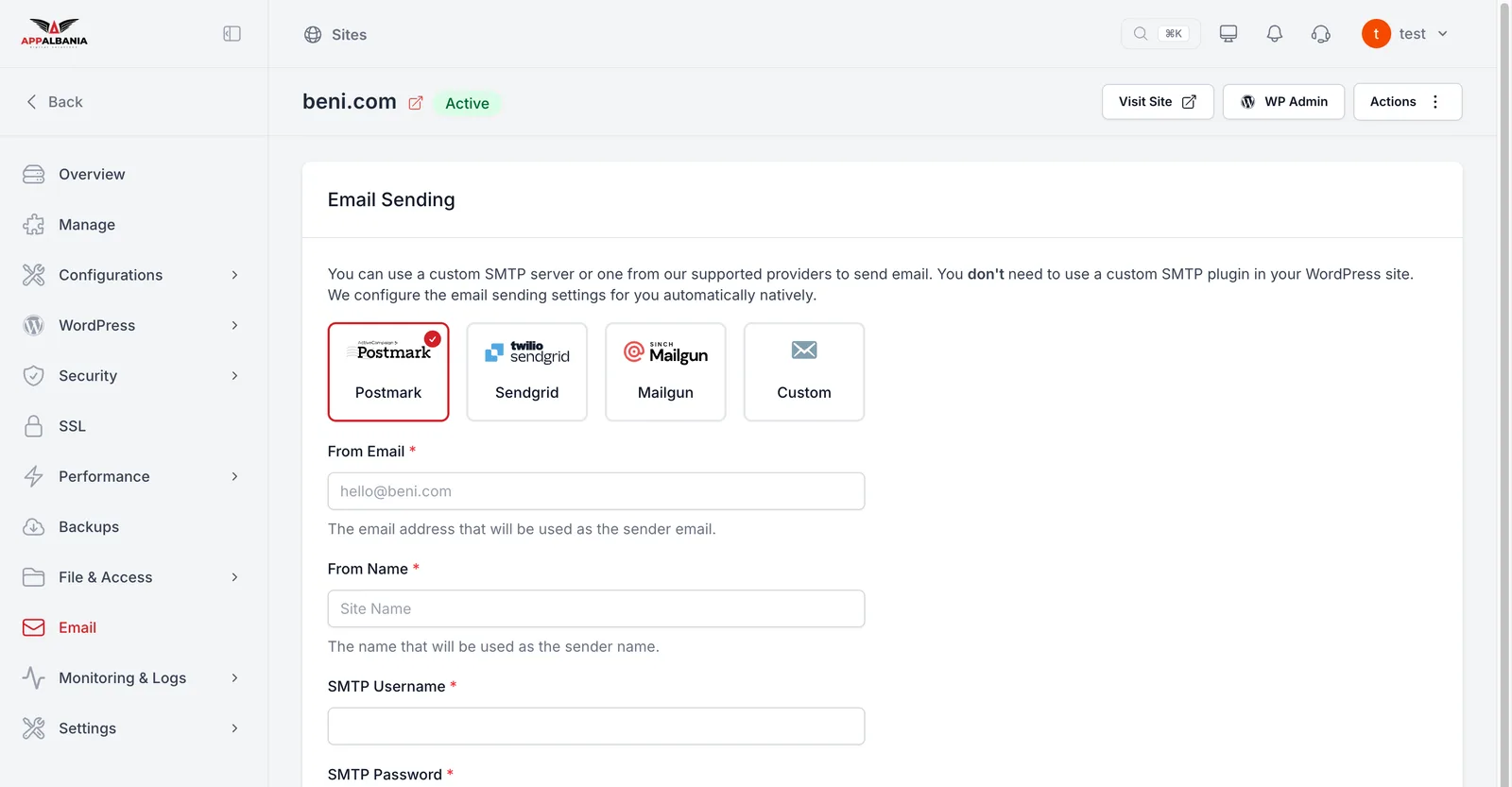
- Open your site and choose Email in the sidebar. You will see the Email Sending section.
- Choose the provider: Postmark, Sendgrid, Mailgun or Custom.
- Fill in From Email (the address the email appears to come from, for example an address on your domain) and From Name (the name the recipient sees, for example your business name).
- Enter the SMTP Username and SMTP Password your provider gives you. If you chose Custom, also fill in the SMTP server host and port.
- Click Verify Connection and Save Changes. The panel tests the connection to the provider and only saves the settings if the connection works.
Use an address on your own domain as the From Email, the same domain you verified with the provider. Most providers ask you to verify the domain before they let you send from it.
Test that email goes out
After saving the settings, run a real test:
- Fill in the contact form on your site, or use "Lost your password?" on the WordPress login page for a test user.
- Check the inbox and the spam folder of the address that should receive the message.
- If the email does not arrive, check your provider's dashboard: it usually shows whether the message was sent or rejected.
When emails do not arrive
- Verification fails: check the SMTP username and password again. Copy them straight from the provider's account, without extra spaces.
- Emails land in spam: make sure the From Email is on your domain and that the domain is verified with the provider.
- With Custom: check that the host and port are exactly the ones your provider gives.
- Another SMTP plugin: if you installed an SMTP plugin in WordPress earlier, it may override the settings. Since the setup is done in the panel, the plugin is usually no longer needed.
For more detail, read the guide Email and SMTP in WordPress. If the problem continues, also see Troubleshooting and logs.
Need help?
If you cannot connect your provider, open a support request and tell us which provider you are using.