
Chapter 4 of 15
Domain and DNS
How to point your domain to the hosting with A records, read the DNS status, use Cloudflare and manage domains in the panel.
In this guide
For your site to open on your domain, the domain must point to the hosting. You do this by adding two DNS records at your domain registrar, the company you bought the domain from.
What DNS is
DNS is like the internet's address book: it tells the browser which server holds the site for a domain. An A record links the domain to the server's IP address. You need two records: one for the bare domain (@) and one for www.
The DNS box in your account
On the Overview tab, under Your sites, each site has a DNS box. It shows:
- the live status of the domain;
- whether SSL is on or off;
- the two records you need to add: A @ and A www, each with the IP address and a Copy button.
The IP address comes automatically from the hosting system. Always use the one shown in your DNS box. The same instructions are also in your welcome email.
Point your domain
- Open
host.appalbania.com/accountand go to Your sites. - In another tab, sign in to your domain registrar and open DNS management for the domain.
- Create a record of type A with the name
@. For the value, paste the IP you copied with Copy on the A @ row. - Create a second A record with the name
wwwand paste the IP from the A www row. - If old A records for
@orwwwpoint somewhere else, delete or change them. - Save the changes at the registrar and return to your account to check the status.
DNS changes can take from a few minutes up to 24–48 hours to spread. If you are unsure about the records, ask support.
What the status means
| Status | Meaning | What to do |
|---|---|---|
| Domain points here | The records are correct and the domain opens the site on the hosting | Install SSL |
| Domain not pointed yet | The domain still points elsewhere or the change has not spread yet | Check the records and wait |
| Behind Cloudflare proxy | The domain goes through Cloudflare, so the server IP is hidden | See the Cloudflare section below |
Next step: SSL
When the status shows the domain points here, open the panel and go to SSL → Let's Encrypt to install the free certificate. After that, the HTTPS field on Overview becomes Enabled. Let's Encrypt only works once the domain already points to the site. See SSL.
If you use Cloudflare
Cloudflare is a service that sits between visitors and the server (a proxy). If your domain goes through Cloudflare:
- In Cloudflare, add the A records for
@andwwwwith the IP from your DNS box. - In the panel, open Configurations → Nginx.
- In the Config Manager, turn on My site is behind Cloudflare proxy, so the logs record real visitor IPs.
- For the certificate, you can use SSL → Cloudflare Origin CA.
Domains in the panel
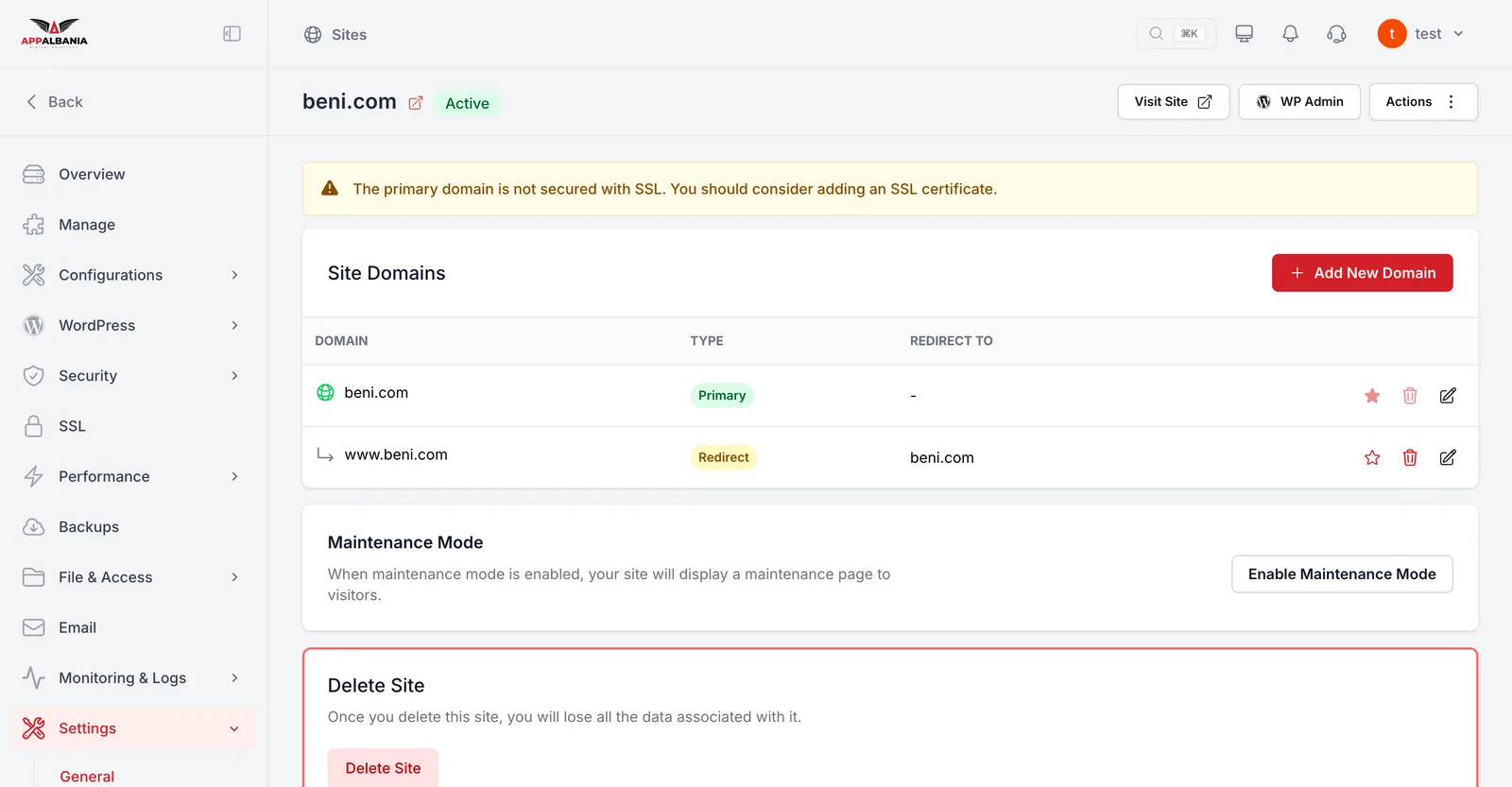
In the panel, Settings → General has the Site Domains section with a DOMAIN / TYPE / REDIRECT TO table:
- Primary — the site's main domain.
- Redirect — a domain that redirects to the main one, for example
www.domain.comredirects todomain.com. Visitors reach the same site with or without www.
Add another domain
- In the panel, open Settings → General.
- Under Site Domains, click Add New Domain.
- Enter the domain and save.
- At that domain's registrar, add the A records with the same IP.
If you want to change the primary domain, contact support first. The change affects the site's links and the SSL certificate. Settings shows the warning The primary domain is not secured with SSL until the primary domain has a certificate.
For a step-by-step guide for different registrars, read how to connect your domain.
Need help? Open a ticket at support and include your domain and registrar.