
Chapter 7 of 15
Site configurations
WP Config, PHP version and limits, Nginx configuration, WordPress cron and redirect rules: how to change them from the hosting panel.
In this guide
This chapter explains the technical site settings you change from the hosting panel: WP Config, PHP, Nginx, Cron and redirects. Change only what you need and test the site after each change.
WP Config: debugging and automatic updates
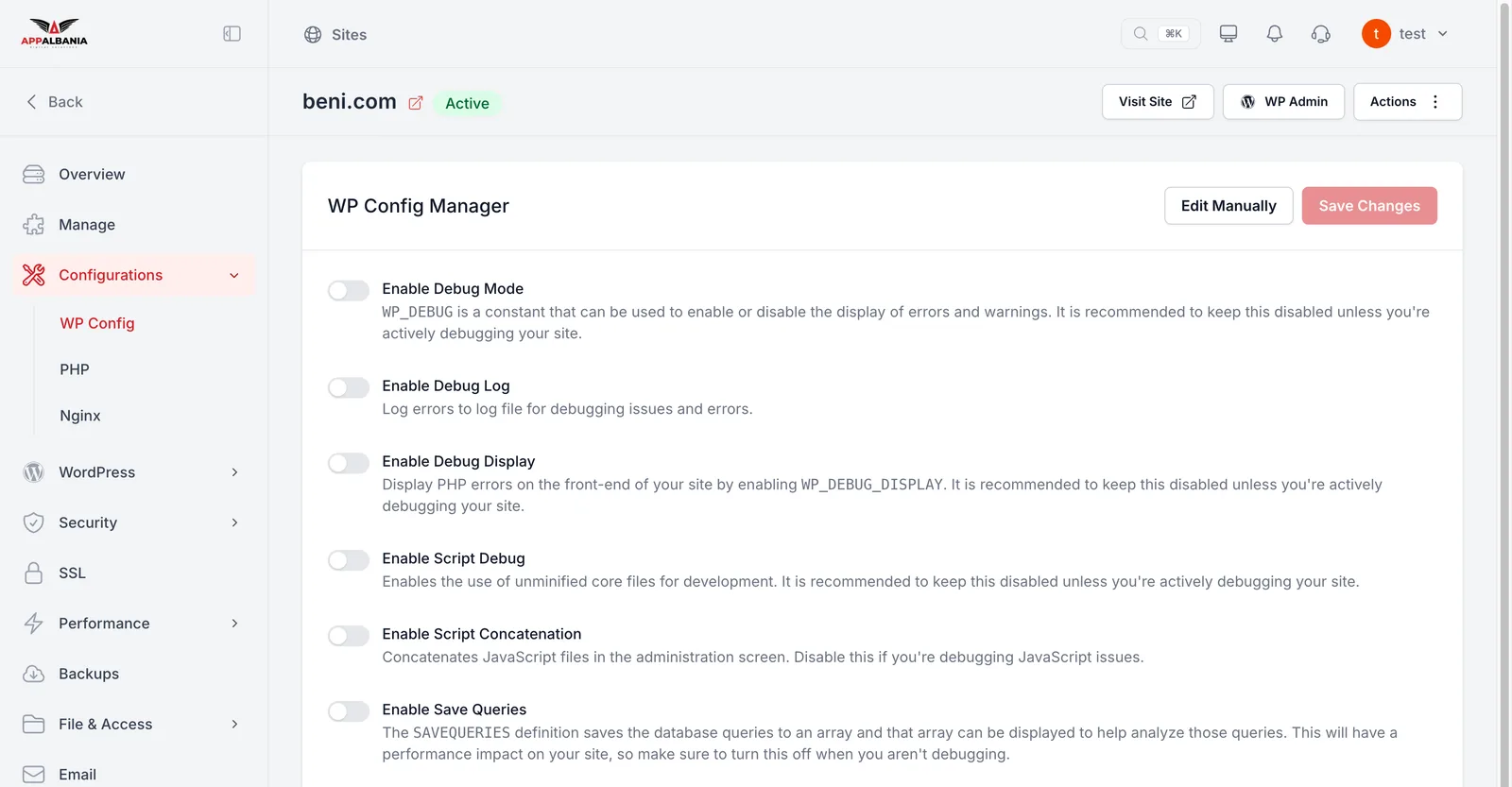
wp-config.php is WordPress's main settings file. Under Configurations → WP Config, the WP Config Manager section lets you change it with toggles, without opening the file.
- Enable Debug Mode (WP_DEBUG) — turns on WordPress's error-finding mode.
- Enable Debug Log — writes errors to a log file, which you read under Logs → Debug Log.
- Enable Debug Display — shows errors directly on the page.
- Enable Script Debug, Enable Script Concatenation, Enable Save Queries — options for developers.
- Open Configurations → WP Config.
- Turn on Enable Debug Mode (WP_DEBUG) and Enable Debug Log.
- Click Save Changes.
- Repeat the problem on the site, then read Logs → Debug Log.
- When you are done, turn debugging off and save again.
Do not leave Enable Debug Display on for a public site: visitors will see technical error messages.
Under Automatic Core Updates, choose how WordPress itself is updated:
- All updates (recommended) — every update.
- Minor and security only — only small and security updates.
- Disabled — no automatic updates.
The Edit Manually button opens the file for direct editing. Use it only if you know exactly what you are changing.
PHP: version and limits
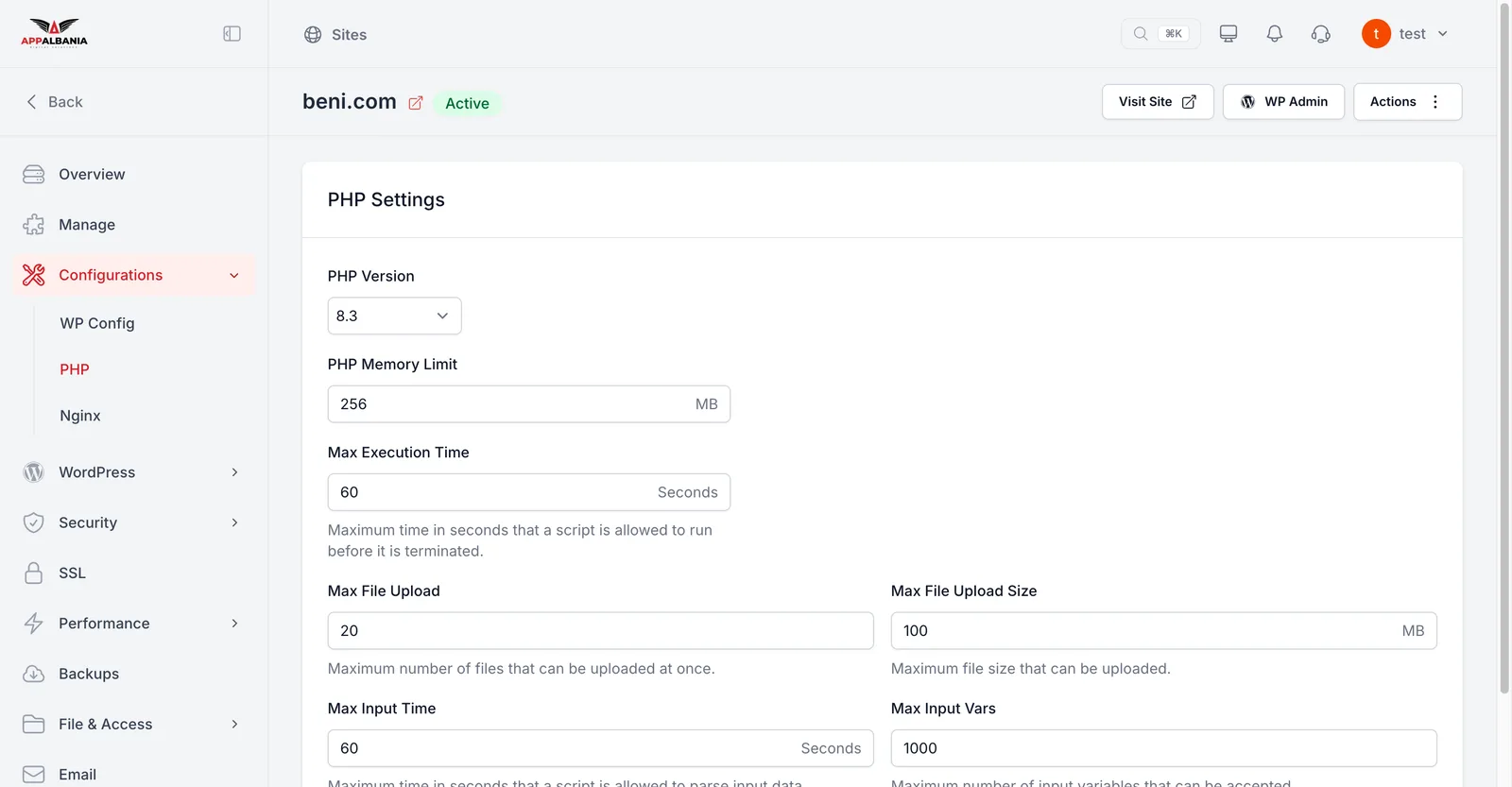
PHP is the language WordPress runs on. Under Configurations → PHP you find:
| Setting | What it does |
|---|---|
| PHP Version | 8.2, 8.3 or 8.4 |
| PHP Memory Limit (MB) | How much memory one request may use |
| Max Execution Time | How long one request may run |
| Max File Upload | How many files at once |
| Max File Upload Size (MB) | The largest single file you can upload |
| Max Input Time / Max Input Vars | Limits for forms and submitted data |
| Process Manager Type | Static / Dynamic / On Demand, plus pm.max_children and related values |
| Enable PHP OPCache | Keeps PHP code ready in memory so the site responds faster |
- Open Configurations → PHP.
- Change the value you need, for example Max File Upload Size (MB) when a large file will not upload.
- Save the changes and test the site.
Before switching PHP Version, update your plugins and themes and take a backup. If something breaks, switch back to the previous version.
Nginx
Nginx is the web server that delivers your pages to visitors. Under Configurations → Nginx you find:
- Config Editor — direct editing of the configuration, with a Restore Default button to go back to the original.
- Config Manager — the option "My site is behind Cloudflare proxy — Log real visitor IPs in Nginx". Turn it on if your domain goes through Cloudflare (see Domain and DNS).
A mistake in the Config Editor can make the site unreachable. If that happens, use Restore Default or write to us.
Cron
WordPress cron runs scheduled jobs (scheduled posts, emails, plugin tasks). Normally it only starts when someone visits the site, so on quiet sites jobs run late. Under Cron Settings (in Settings) you can run it with a real server cron instead.
- Open Settings → Cron Settings.
- Choose how often it runs: every N seconds, minutes or hours.
- Save.
Redirects
A redirect sends visitors from an old address to a new one, for example when you change a page's URL.
- Open Performance → Redirect Rules.
- In Redirect Manager, click Add New Redirect.
- Fill in the old and the new address and save.
- Test the old address in your browser.
Redirecting www to your main domain is handled under Settings → General → Site Domains, not here.
Need help?
Write to support, on WhatsApp +355 67 496 3486 or at info@appalbania.com.