
Chapter 8 of 15
Speed and caching
Turn on FastCGI page caching, WooCommerce exclusions and Redis object cache, and measure your site speed with the Performance Monitor.
In this guide
A fast site keeps visitors and helps with Google. This chapter covers the three speed tools in the hosting panel: page caching, Redis object caching and speed measurement.
What caching is
Caching means keeping a ready-made copy of something so it does not have to be built from scratch every time. Without caching, WordPress builds every page with PHP and the database for each visitor. With caching, visitors get a ready copy and the page opens much faster.
Page cache: FastCGI Cache
- At host.appalbania.com/account, click Open hosting panel and open your site.
- Choose Performance → Caching.
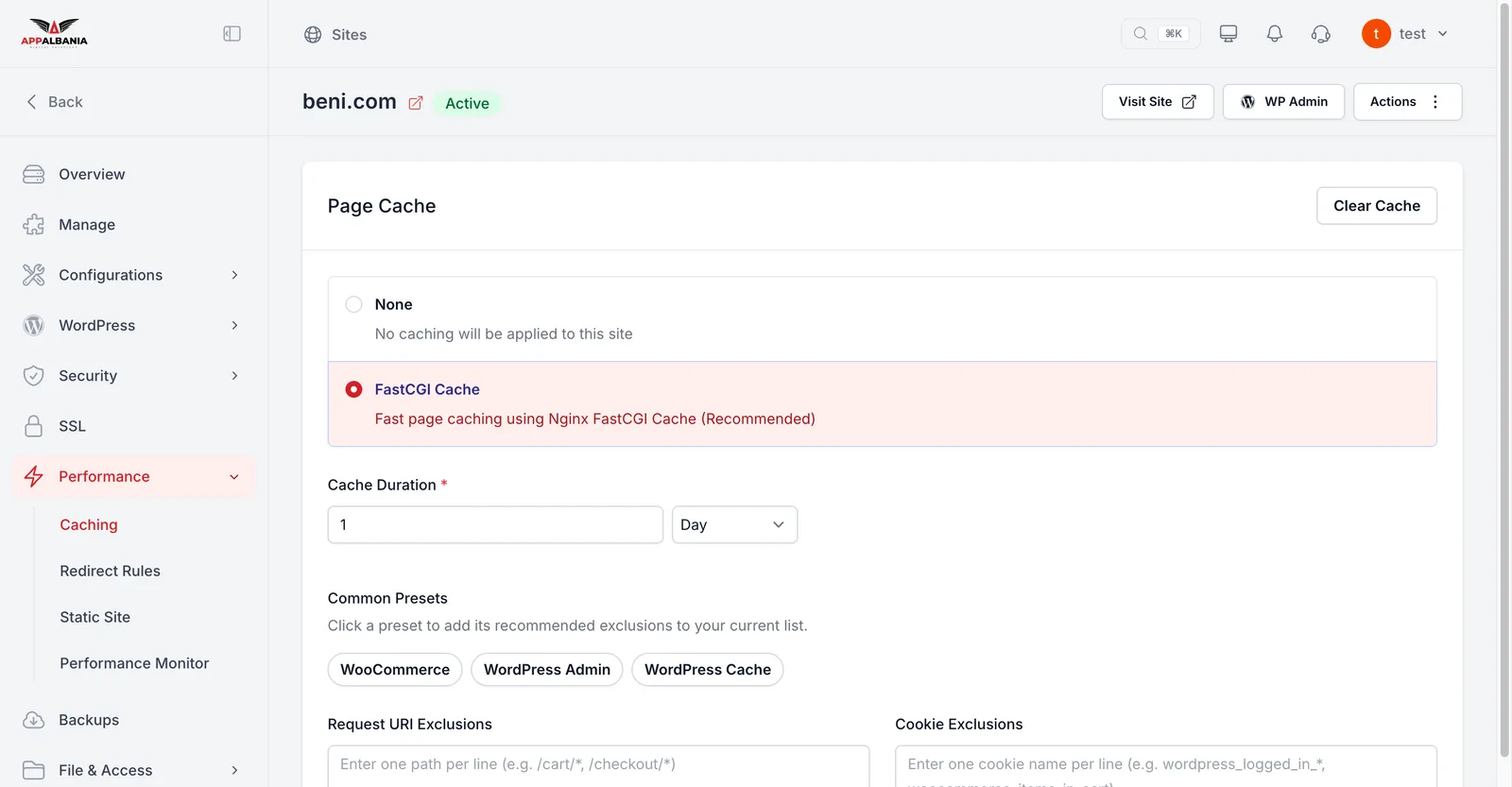
- Under Page Cache, choose FastCGI Cache (fast page caching with Nginx, recommended) instead of None.
- Set the Cache Duration: how long a copy is kept (seconds, minutes, hours or days).
- Choose the exclusions you need (see below) and save.
- Check on Overview that Page caching is on.
Exclusions and WooCommerce
Some pages must not be cached because they are different for each person: the cart, checkout, the customer account, the admin area. The panel has ready-made Common presets:
- WooCommerce — for online shops: cart, checkout and account are not cached.
- WordPress Admin — the WordPress admin area.
- WordPress Cache — standard WordPress exclusions.
You can also add your own:
- Request URI Exclusions — addresses that are never cached, for example a page with a special form.
- Cookie Exclusions — visitors with these cookies get the page without cache, for example
wordpress_logged_in(logged-in users) orwoocommerce_items_in_cart(items in the cart).
If you run a WooCommerce shop, always turn on the WooCommerce preset. Otherwise a customer may see the wrong cart or checkout may not work.
Clearing the cache
When you change something on the site and visitors still see the old version, clear the cache.
- Open Performance → Caching.
- Click Clear Cache under Page Cache.
- Reopen the site in your browser (or in a private window) to check.
Object cache: Redis
Redis is an in-memory cache that stores the results of database queries. It helps most on pages that cannot be fully page-cached: the admin area, shops and pages for logged-in users.
- Open Performance → Caching.
- Under Object Cache, turn Redis on.
- Save and test the site and WP Admin.
- If you see outdated data, click Clear Cache under Object Cache.
The Redis connection details (host, username, prefix, password) are under Manage → Credentials, if a plugin asks for them.
Measuring speed: Performance Monitor
Performance → Performance Monitor measures your site with Google PageSpeed Insights and shows Core Web Vitals, the metrics Google uses for visitor experience:
| Metric | What it measures |
|---|---|
| TTFB | How quickly the server sends the first byte |
| LCP | How quickly the main element of the page appears |
| INP | How quickly the page reacts when you click or type |
| CLS | How much the page "jumps" while loading |
- Open Performance → Performance Monitor.
- Click Scan Now for an immediate measurement.
- Turn on Enable Daily Automated PageSpeed Scan for a measurement every day.
- Review the charts for the last 7, 14 or 30 days, for mobile and desktop.
Measure before and after every change (caching, a new plugin, a new theme). That way you know for sure what made the site faster or slower. More tips in WordPress speed and caching.
Need help?
Write to support, on WhatsApp +355 67 496 3486 or at info@appalbania.com.